How to Show 360 Booth Videos on a TV (Big Screen)
Connect any TV with a web browser to your account with a 6-digit code, and it plays the latest 360 clips in a loop while new ones join by themselves.
~3 min
Open Big Screen
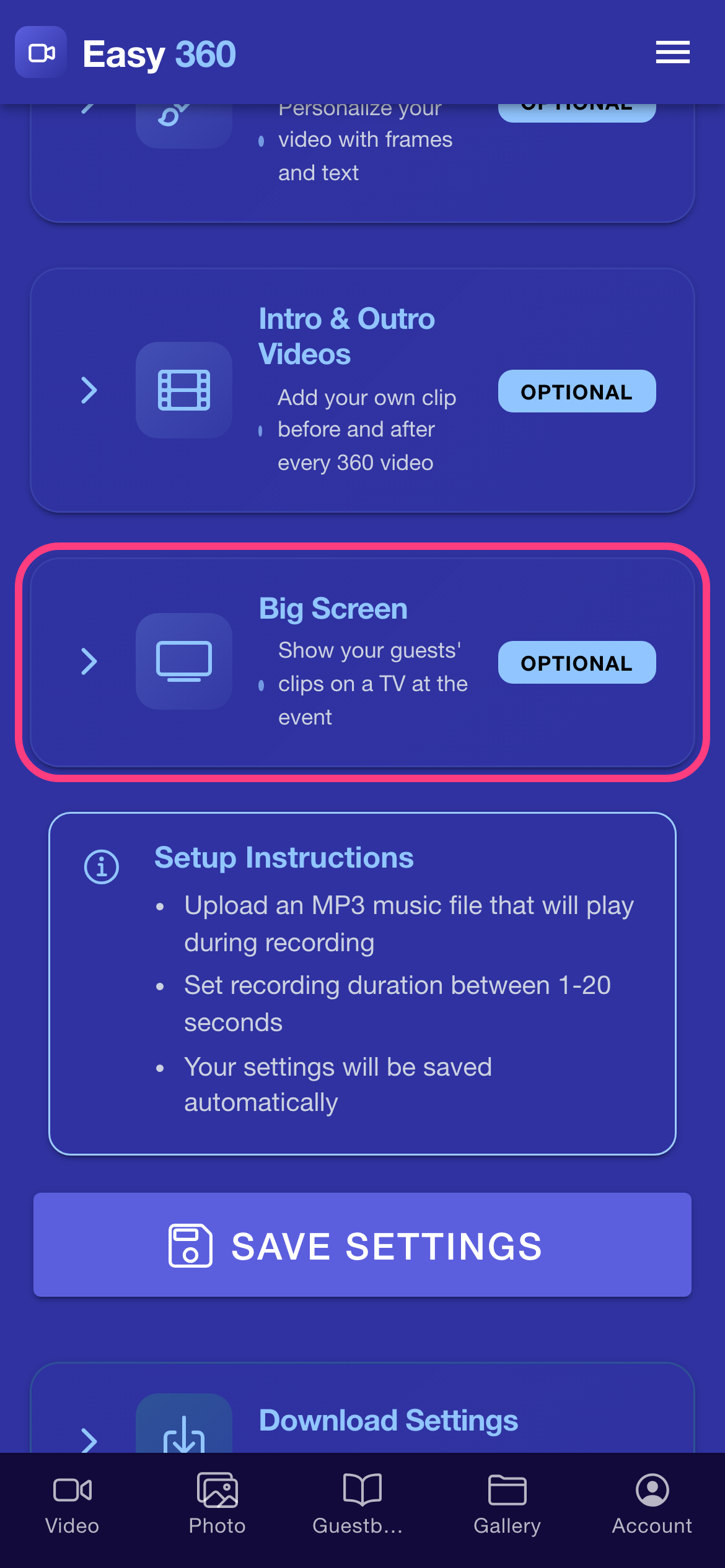
Open the menu, tap Settings and find the Big Screen card, "Show your guests' clips on a TV at the event". Tap it to expand it.
Open easy360.net/tv on the TV
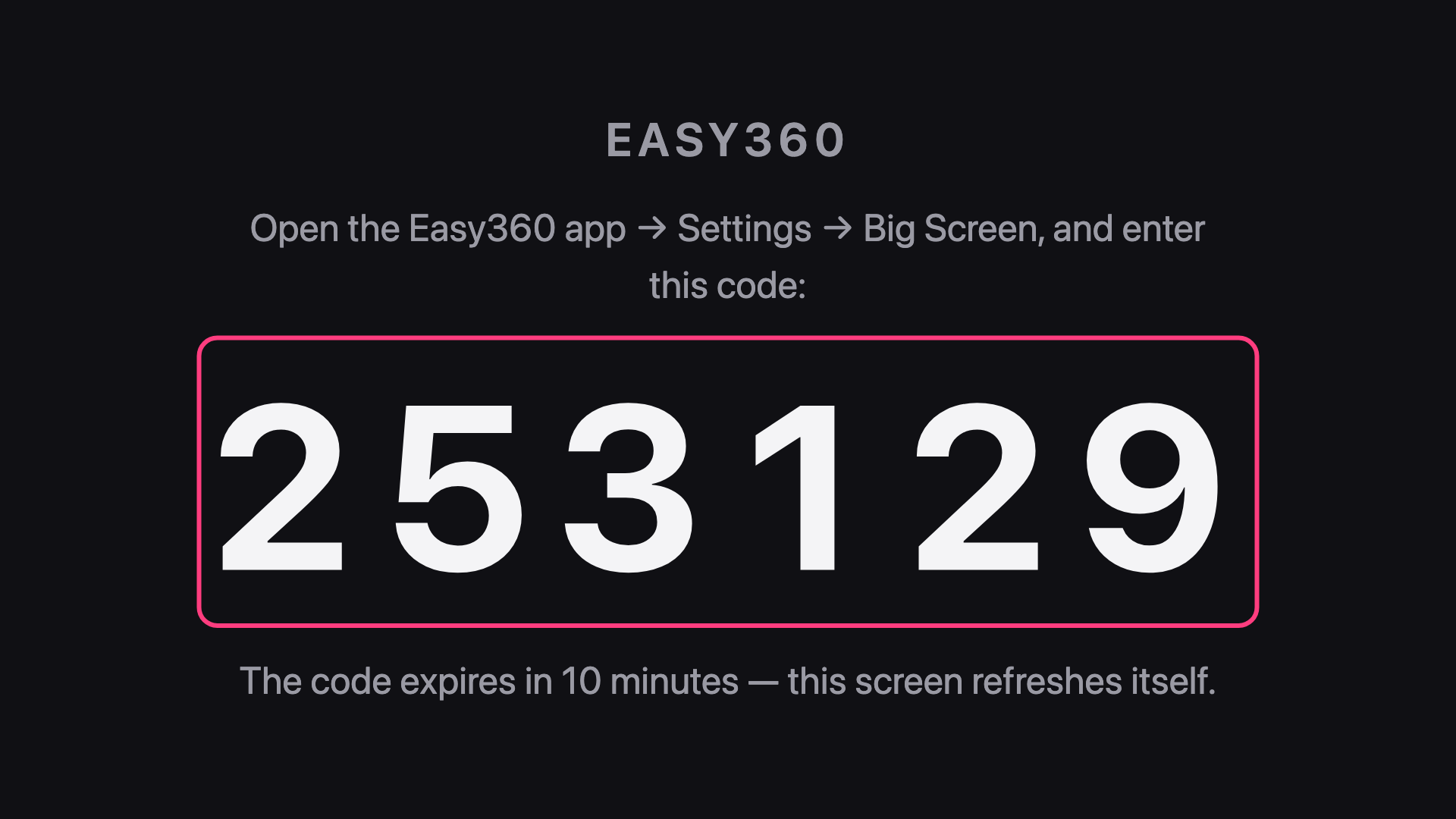
In the TV's web browser, go to easy360.net/tv. The screen shows a 6-digit code. The code is valid for 10 minutes, and the page fetches a fresh one by itself when it expires.
Type the code in the app
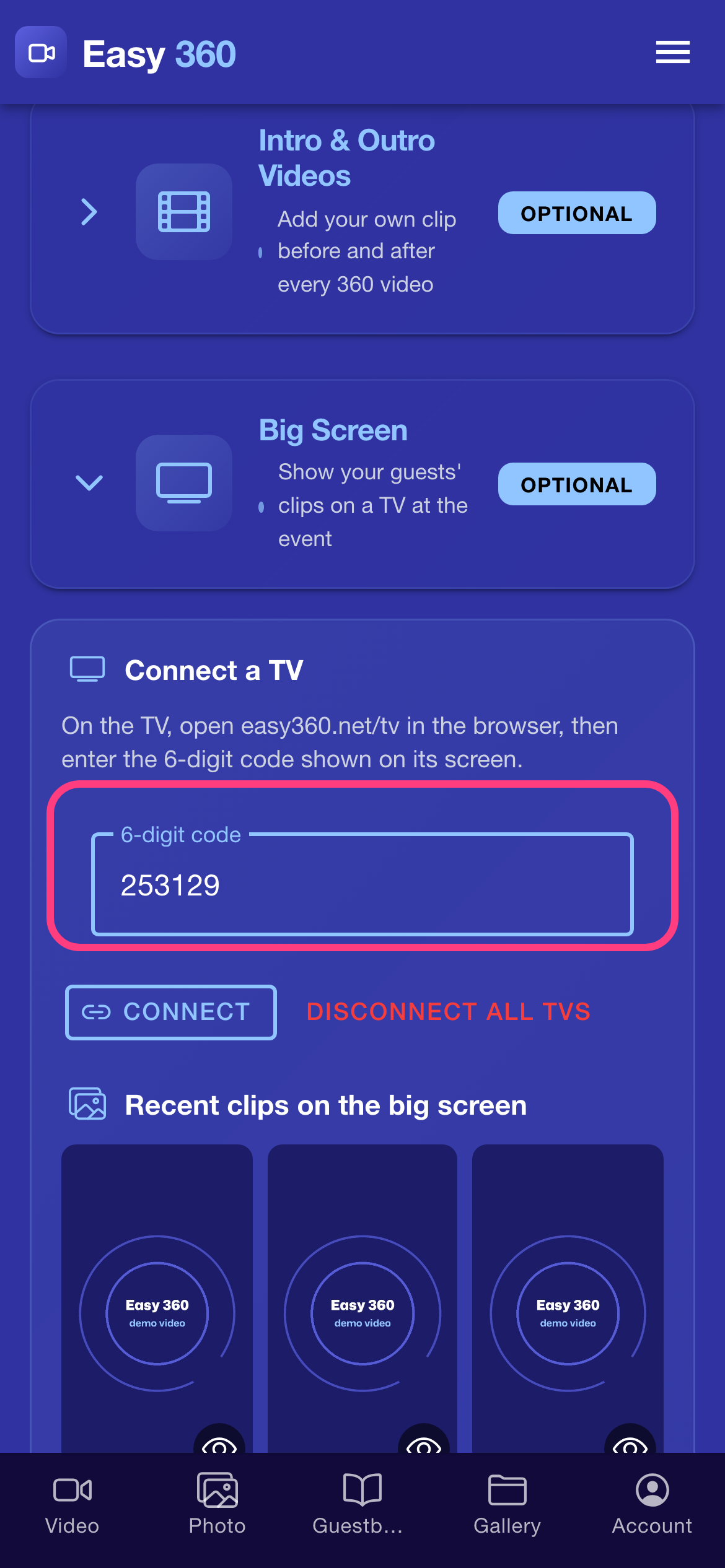
Under Connect a TV, type the code into the 6-digit code field.
Tap Connect
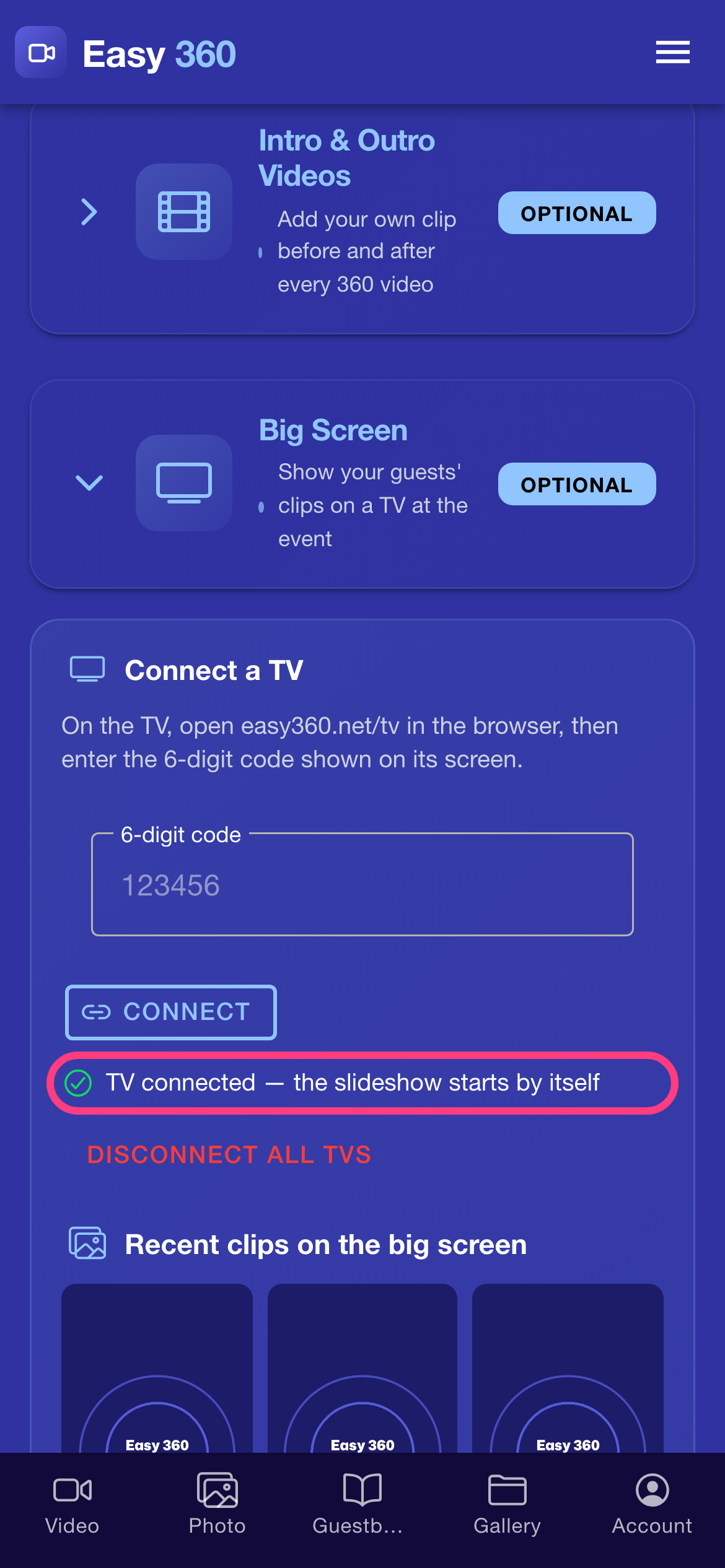
Tap Connect. The app confirms with TV connected — the slideshow starts by itself, and within a few seconds the TV switches from the code to your clips.
Watch the slideshow on the TV
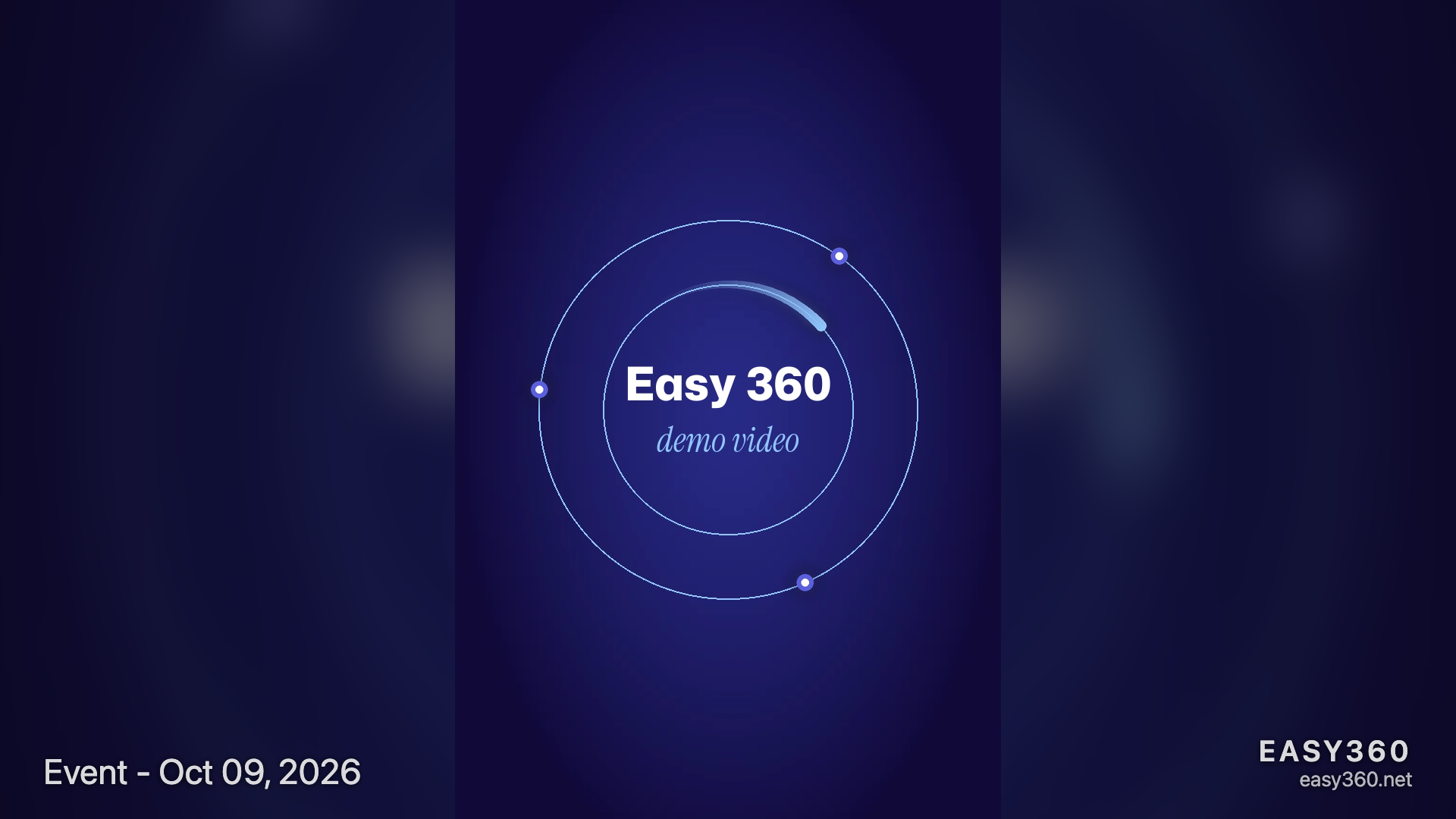
The TV now plays your 20 most recent clips in a loop, in the order they were recorded, with the event name in the corner. It checks for new clips every 10 seconds, so each new spin joins the loop on its own. Nothing needs to be touched on the TV for the rest of the event.
Hide a clip from the TV
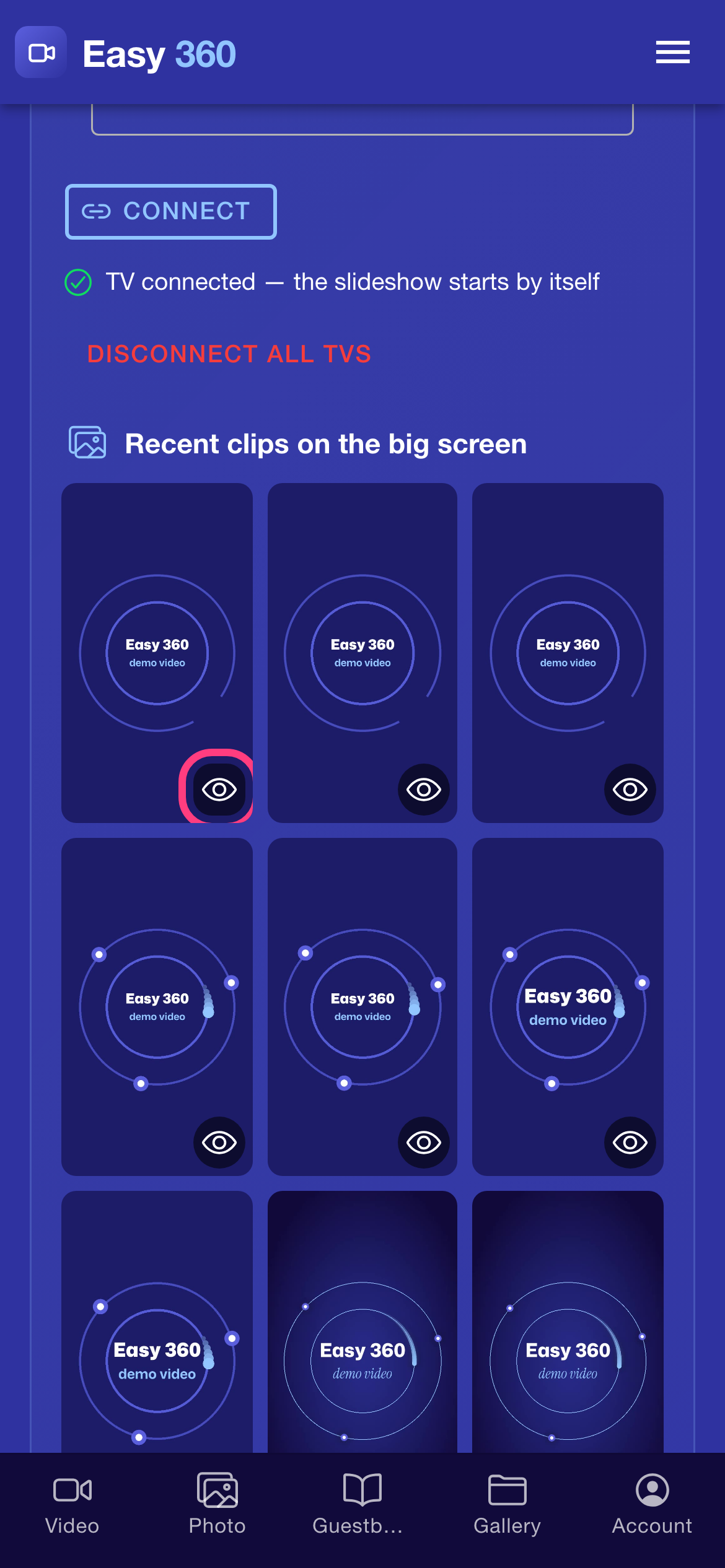
Under Recent clips on the big screen, tap the eye icon on a clip to hide it from the TV, for example a test spin or a clip a guest does not want on the big screen. Tap it again to bring the clip back. Hiding a clip does not delete it, and the guest's QR link keeps working.
Disconnect all TVs after the event
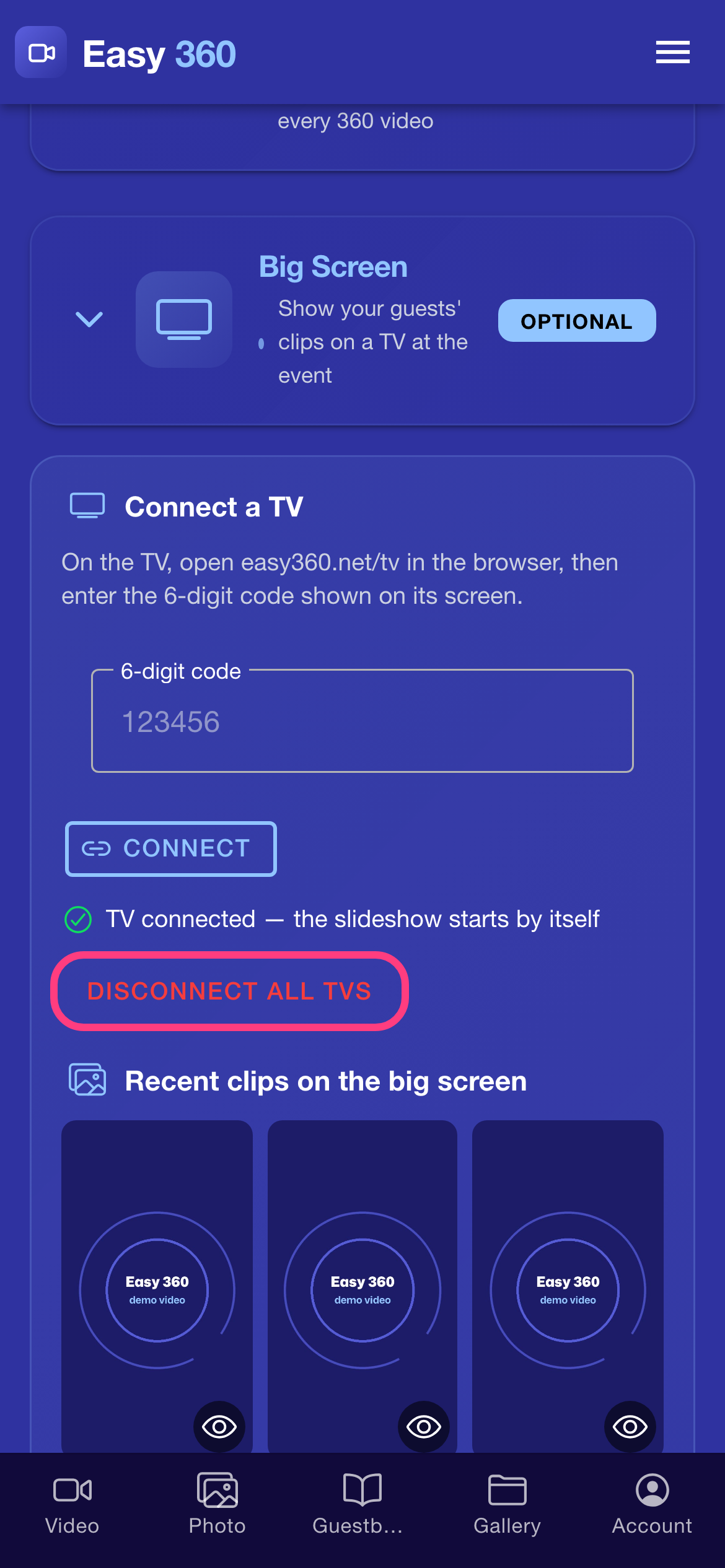
Tap Disconnect all TVs to cut off every connected screen at once. Every connected TV loses access to your clips, so a venue's TV cannot keep showing them after you leave. To use a TV again, open easy360.net/tv on it and enter a new code.
Tips & troubleshooting
- Most smart TVs, streaming sticks with a browser, projectors connected to a laptop and even old TV browsers work. If the TV has no browser, connect a laptop to it with HDMI and open easy360.net/tv on the laptop.
- If you see Code not found or expired — get a fresh one on the TV, the code on the TV changed. Type the new code that the TV shows now.
- If you see Enter the 6-digit code shown on the TV, the field has fewer than 6 digits.
- You can connect more than one TV: open easy360.net/tv on each one and enter its own code.
- Before the guests arrive, record one test spin and hide it, so the first thing on the TV is a real guest.
FAQ
Does the TV need the Easy 360 app?
No. The TV only needs a web browser. The app runs on your phone, and the TV just shows the slideshow page.
Does the Big Screen need Premium?
No. The Big Screen works on the free plan.
Which clips appear on the TV?
Your 20 most recent finished 360 clips that are not hidden. New clips are added automatically while the TV is connected.
Related guides
Ready to try it on your own booth?
Run your first event with the phone you already own. Try Easy 360 free, no card required.
Open the web app