How to Use Two Phones as a 360 Booth (Pair Mode)
Use one phone as the camera on the booth arm and a second phone as the remote control that starts the recording and shows the guest QR code.
~5 min
Sign in on the first phone
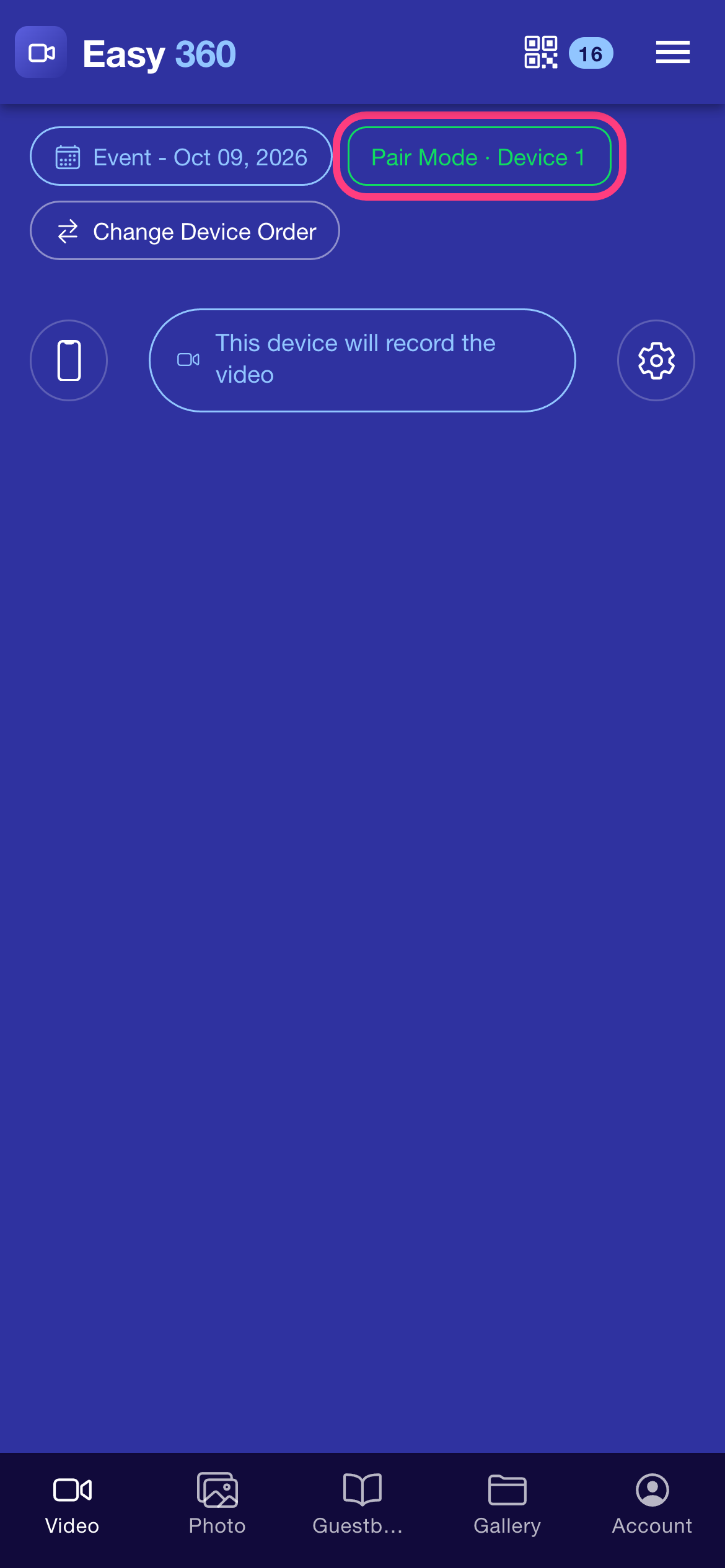
Open the Video tab on the phone that will go on the booth arm. Once the second phone is signed in, the chip at the top reads Pair Mode with Device 1. There is no pairing button, Easy 360 detects the second phone by itself.
Sign in on the second phone
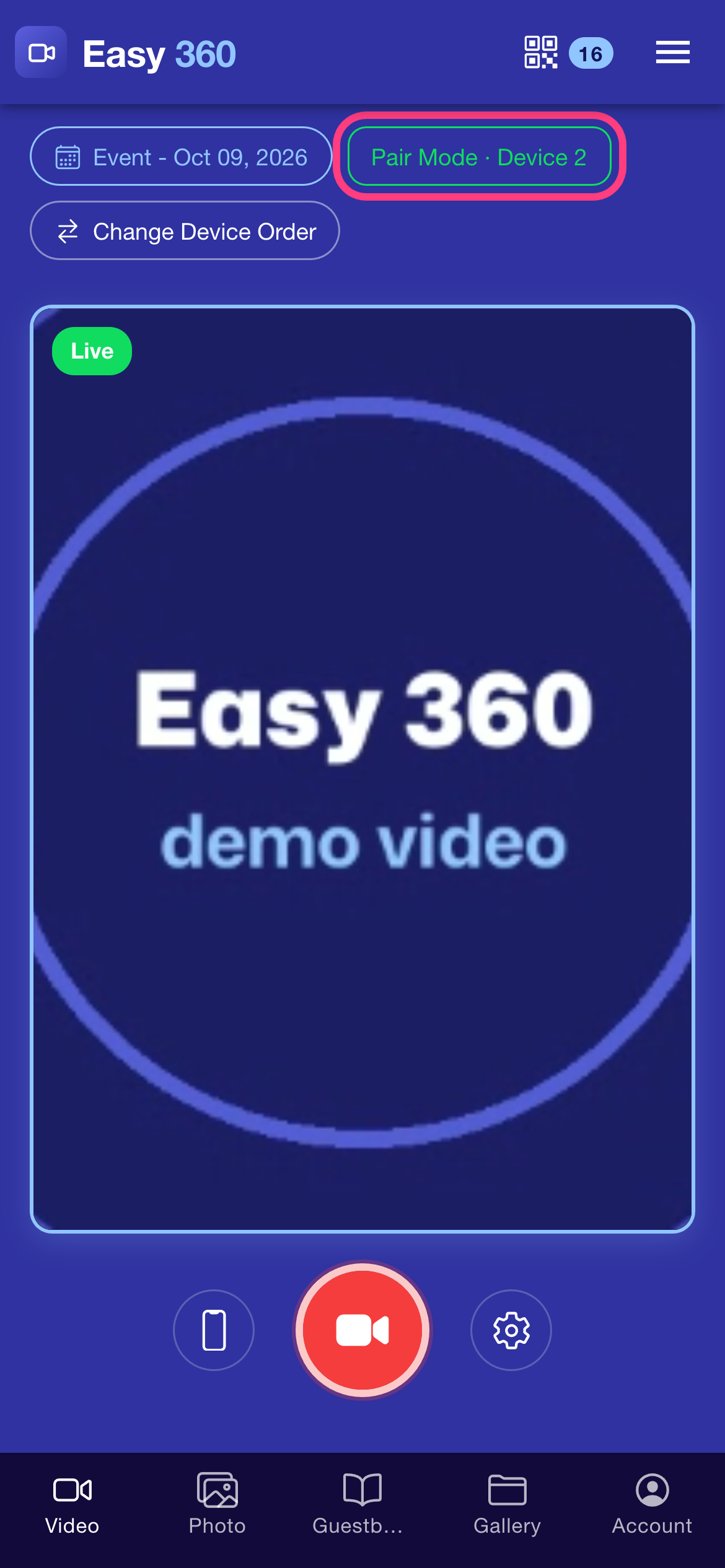
Sign in with the same account on the second phone. Its chip reads Pair Mode with Device 2, and it shows a live preview of what the camera phone sees.
Check what Device 1 does
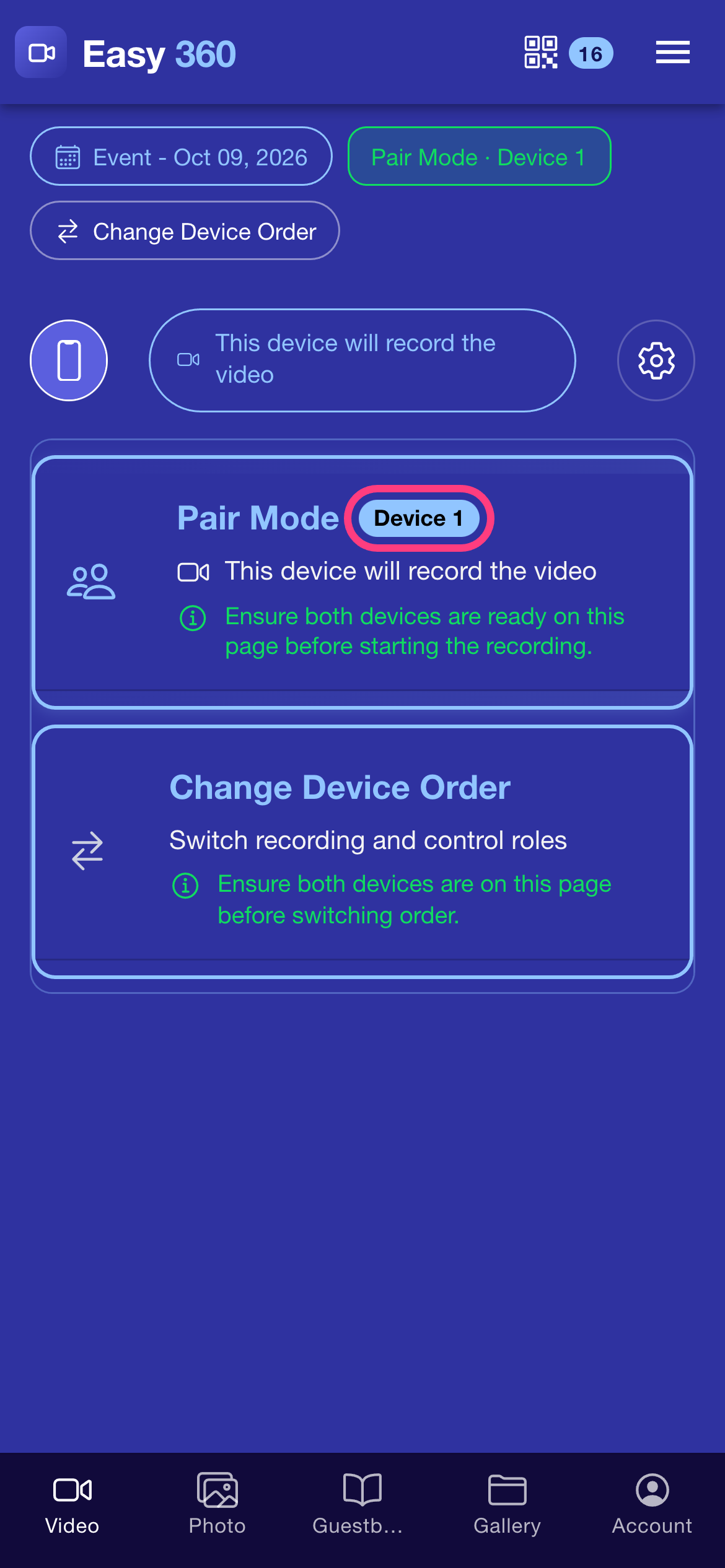
On the first phone, tap the phone icon to open Device Configuration. The Device 1 badge confirms this phone records the video, using its rear camera.
Check what Device 2 does
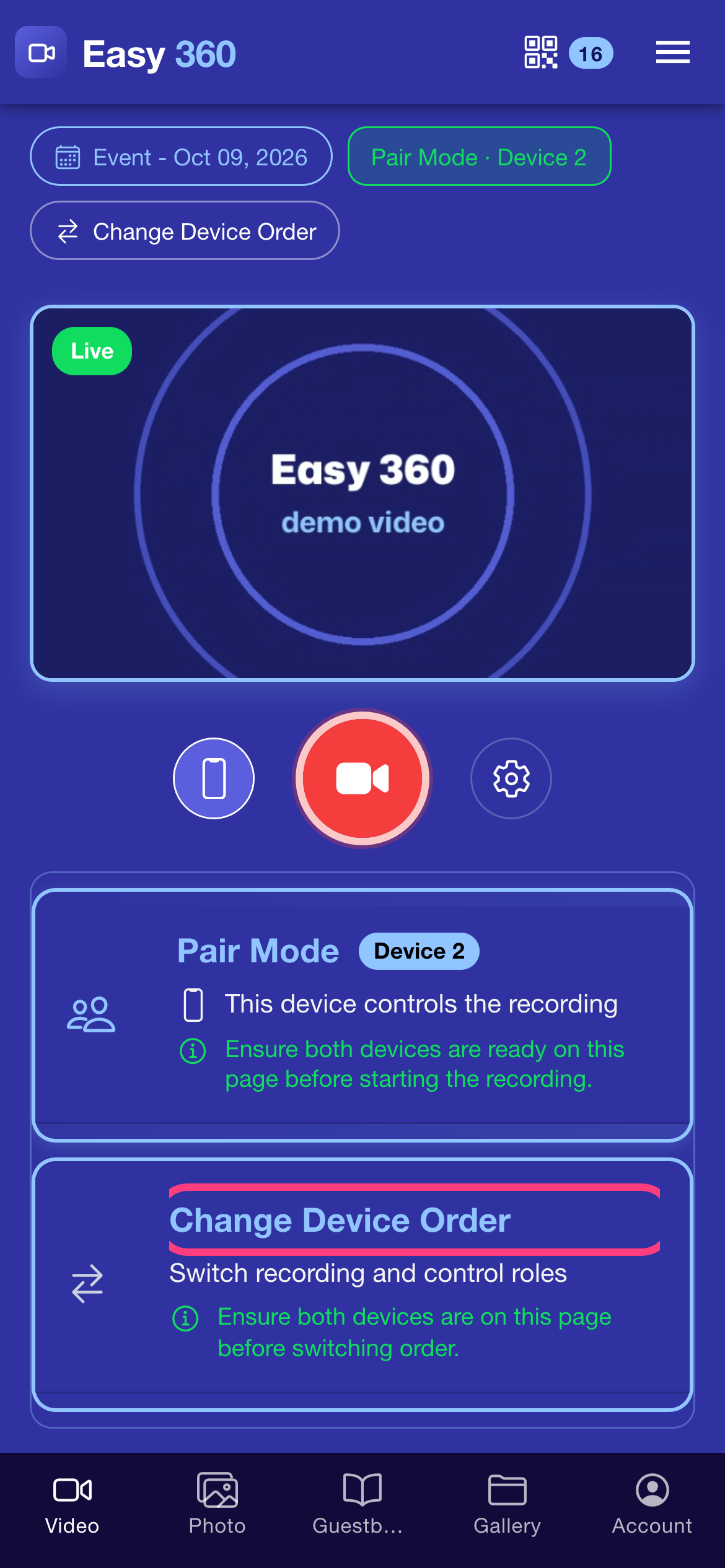
On the second phone, open the same panel. Device 2 controls the recording and shows the QR code. If the roles are the wrong way round, tap Change Device Order on either phone to swap them.
Start the recording from the controller
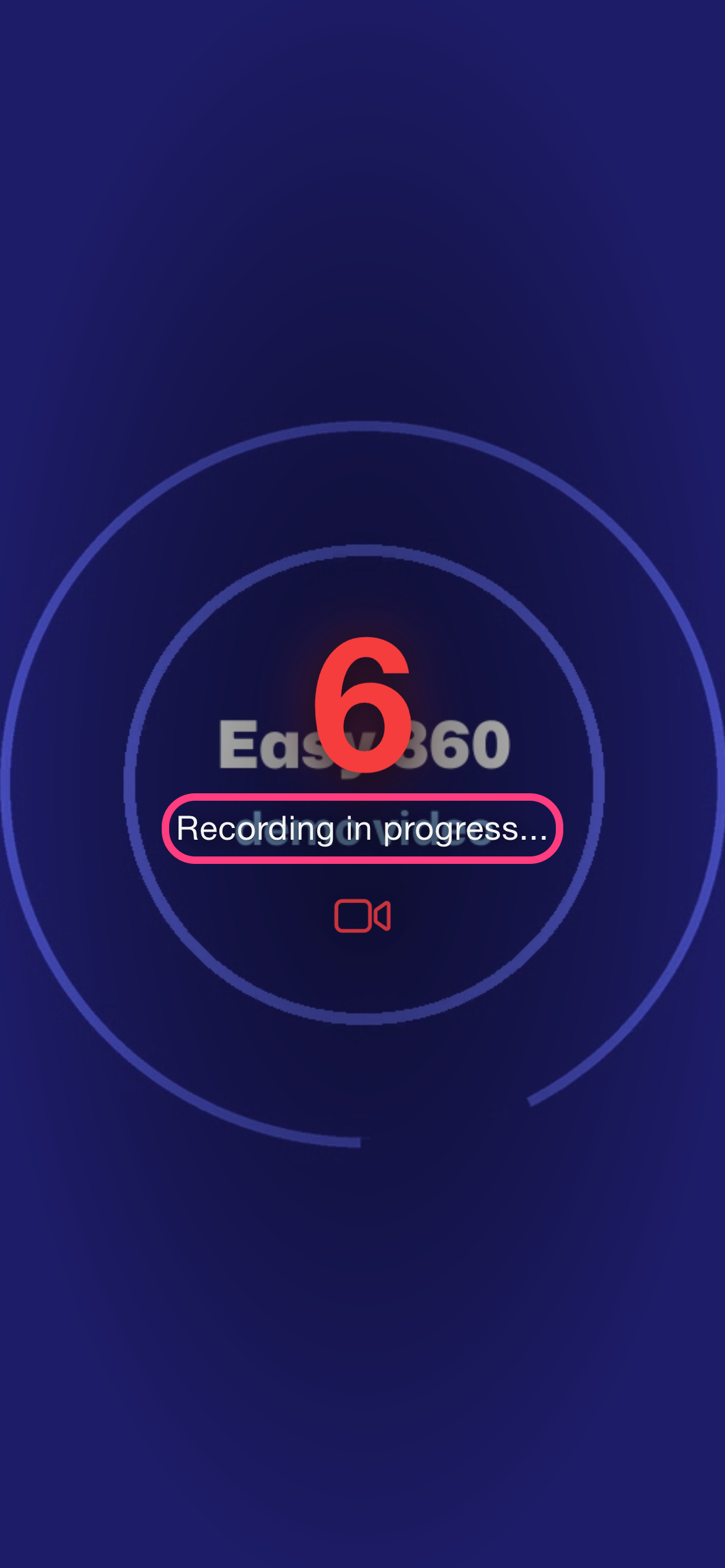
Press the red record button on the second phone and tap I Agree — Start Recording if the consent sheet appears. A countdown runs, then Recording in progress... shows while the first phone films.
Hand the QR code to your guest
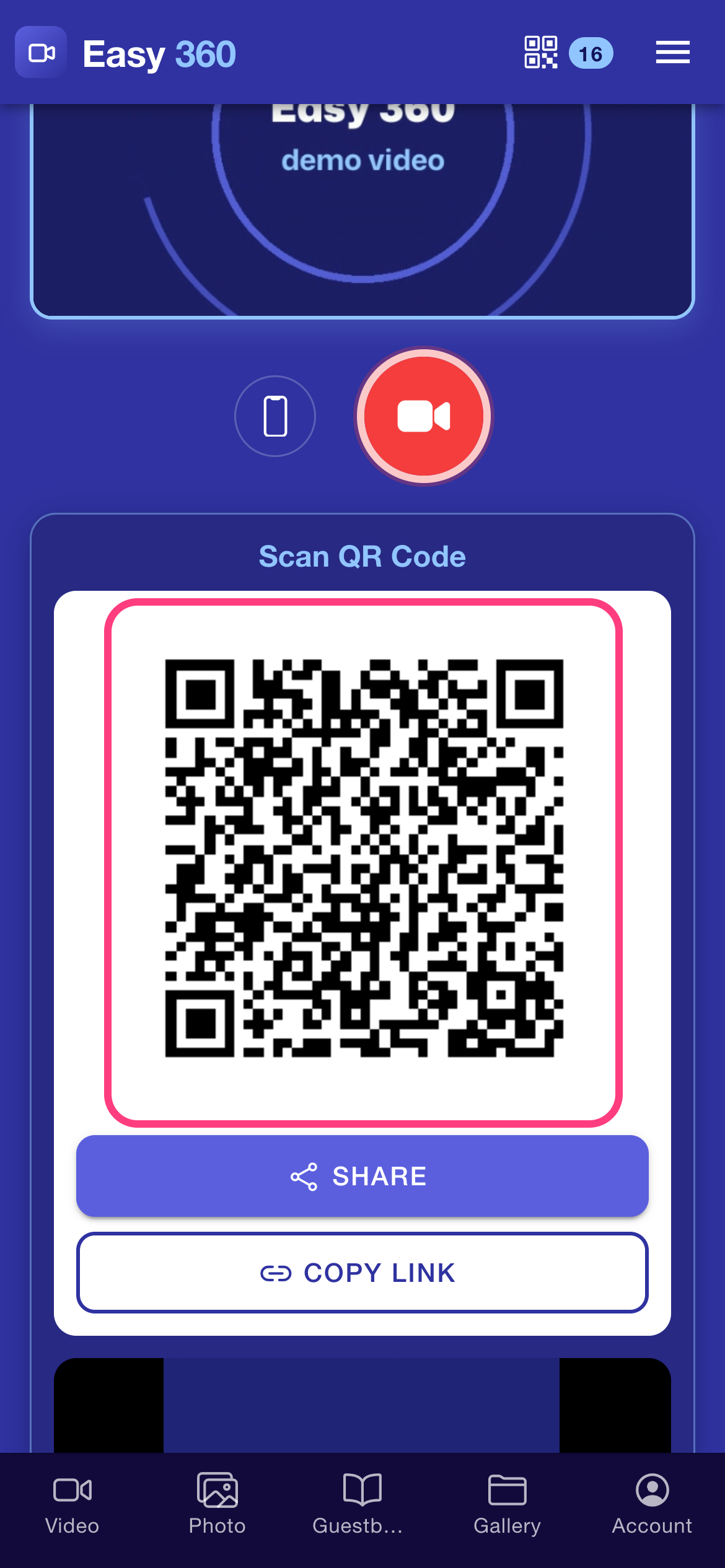
When the first phone finishes, the second phone shows Scan QR Code. Your guest scans it to get the clip, while the camera phone stays on its mount.
Tips & troubleshooting
- Keep both phones online with a stable connection, because the live preview and the recording commands travel over the internet. Keep the Easy 360 app open in the foreground on both.
- Both phones must be signed in to the same account. If a chip says Single Mode instead of Pair Mode, check the account on the other phone and sign in again.
- A third phone cannot join: an account works with two devices at a time. Signing in on a third phone asks whether to disconnect the other two and continue on this one.
FAQ
Is there a pairing button or a code to enter?
No. Easy 360 detects the mode automatically as soon as the second phone signs in to the same account.
Which phone should go on the booth arm?
The one showing Device 1. It records on its rear camera, which is also the better camera on most phones.
Can I swap which phone records?
Yes. Tap Change Device Order on either phone, and the two phones exchange roles.
Related guides
Ready to try it on your own booth?
Run your first event with the phone you already own. Try Easy 360 free, no card required.
Open the web app