How to Add Your Logo or Frame to 360 Booth Videos
Put your own frame, logo and event text on every 360 clip, from the Settings screen of the app.
~5 min
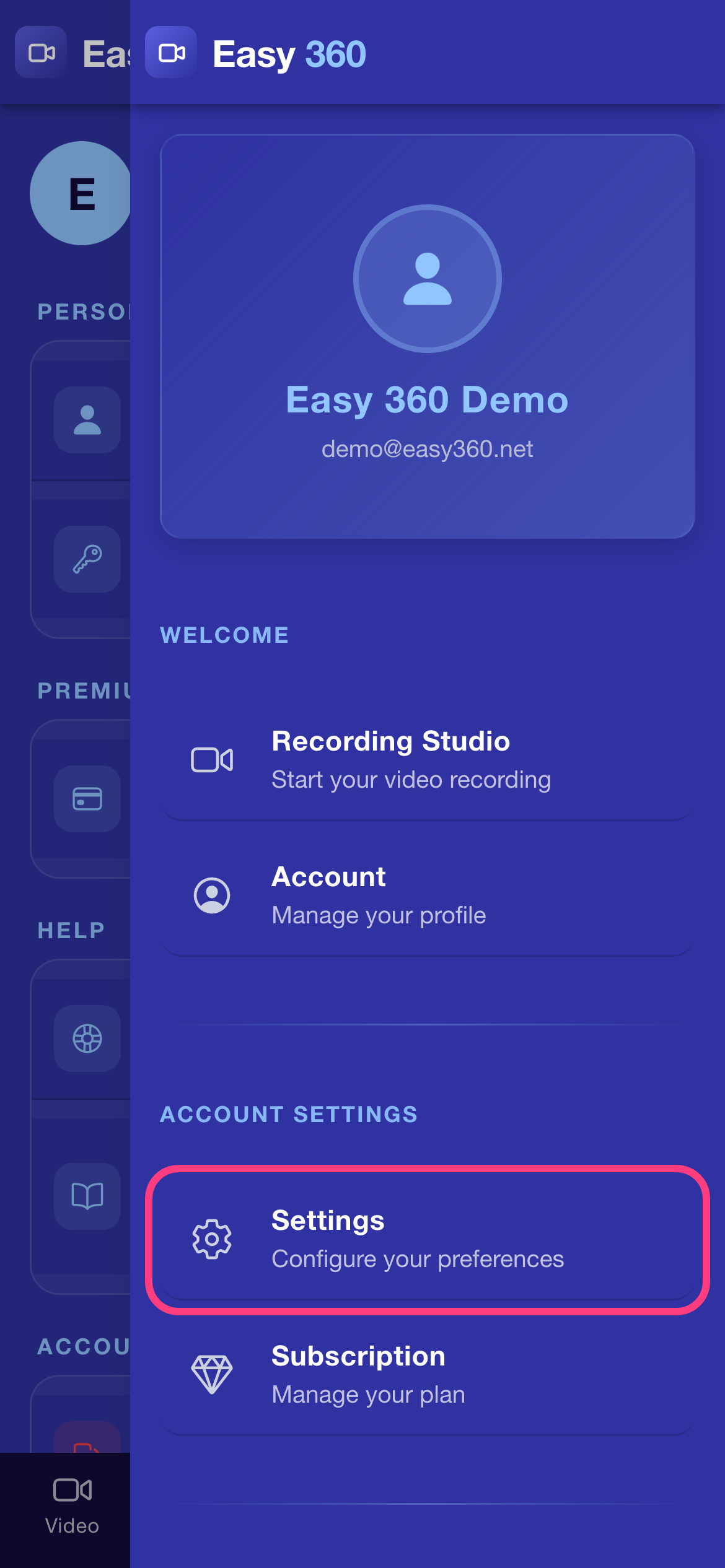
Open Settings from the menu
Tap the menu button at the top right, then tap Settings.
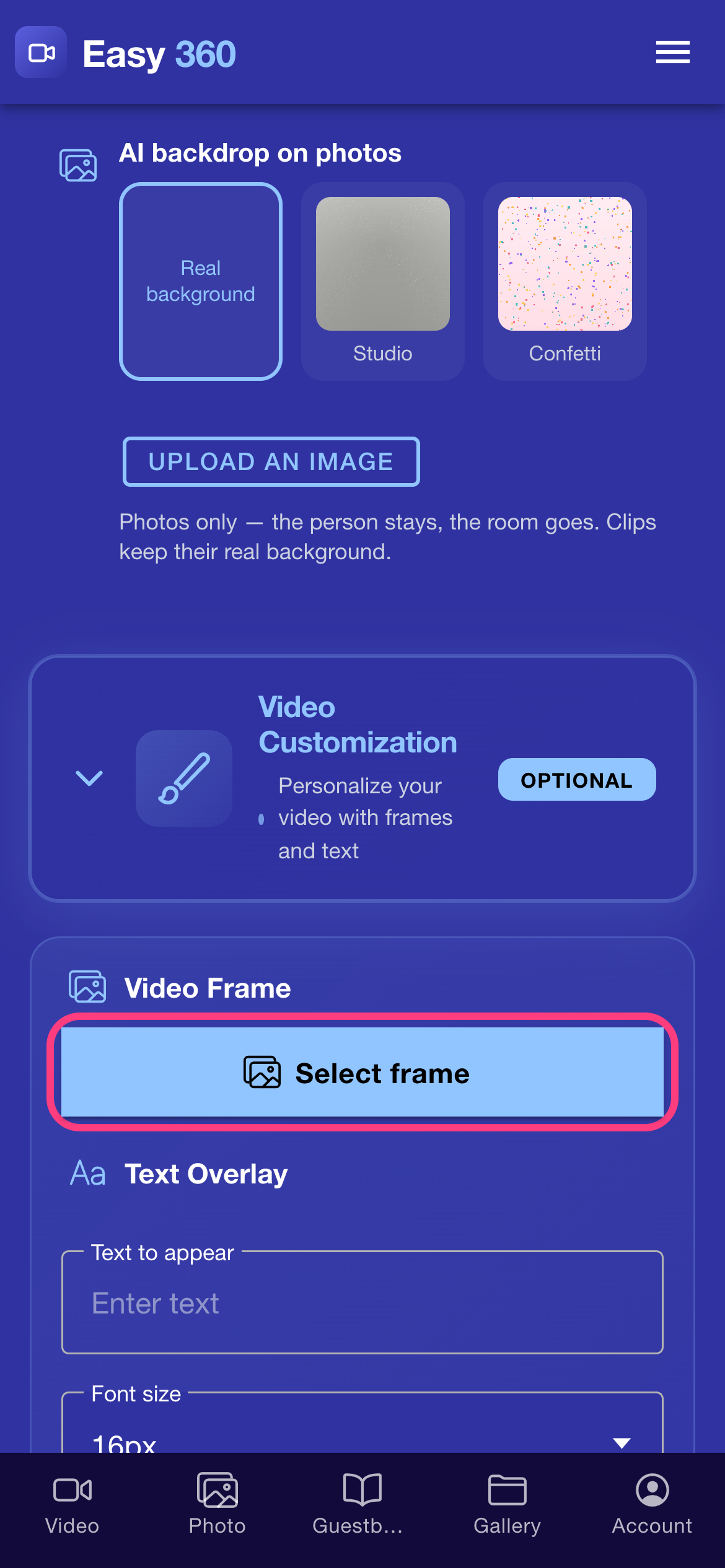
Open the frame picker
In Video Customization, tap Select frame. If you already chose a frame before, the button reads Choose another frame.
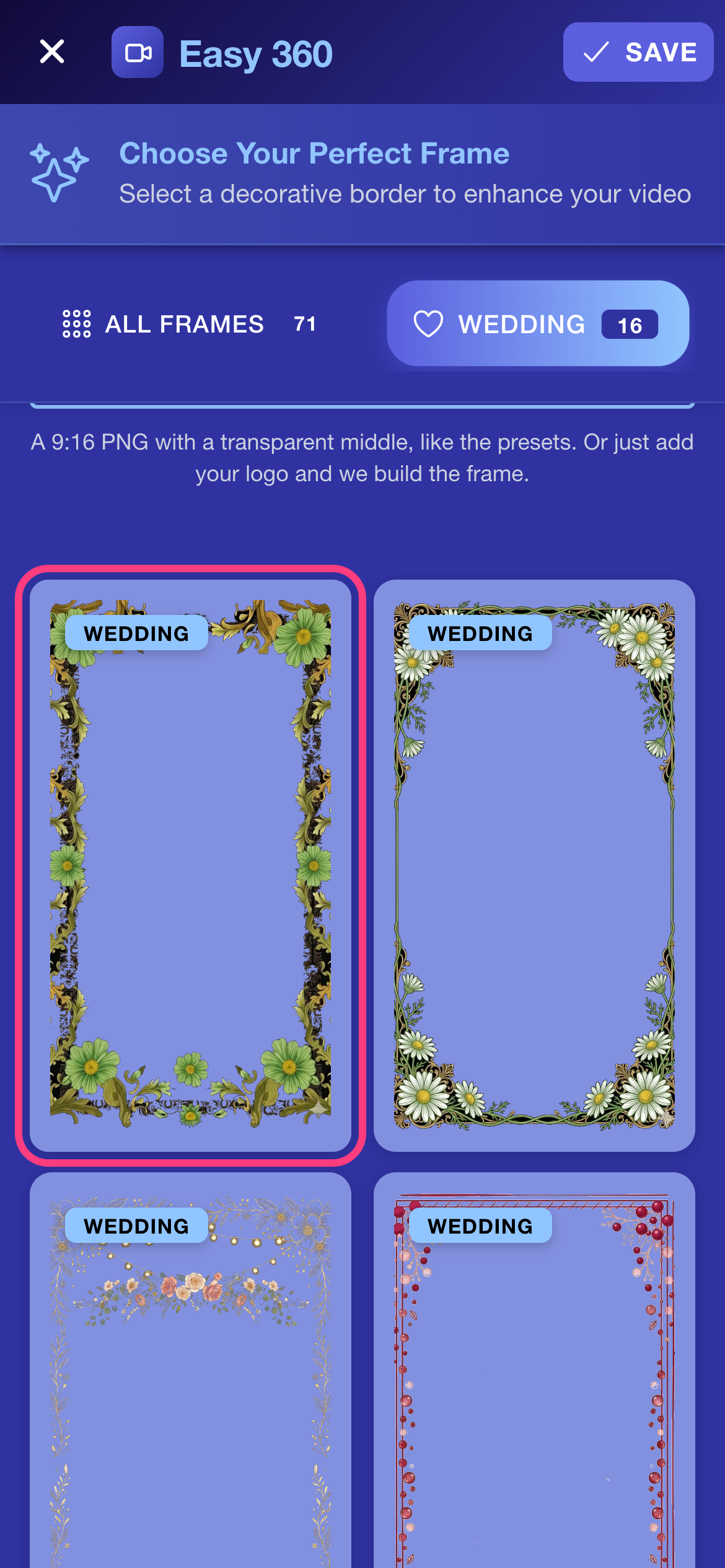
Browse the ready-made frames
Use the category chips at the top to filter the presets, for example Wedding, and tap one to try it. Skip to the next step to use your own design.
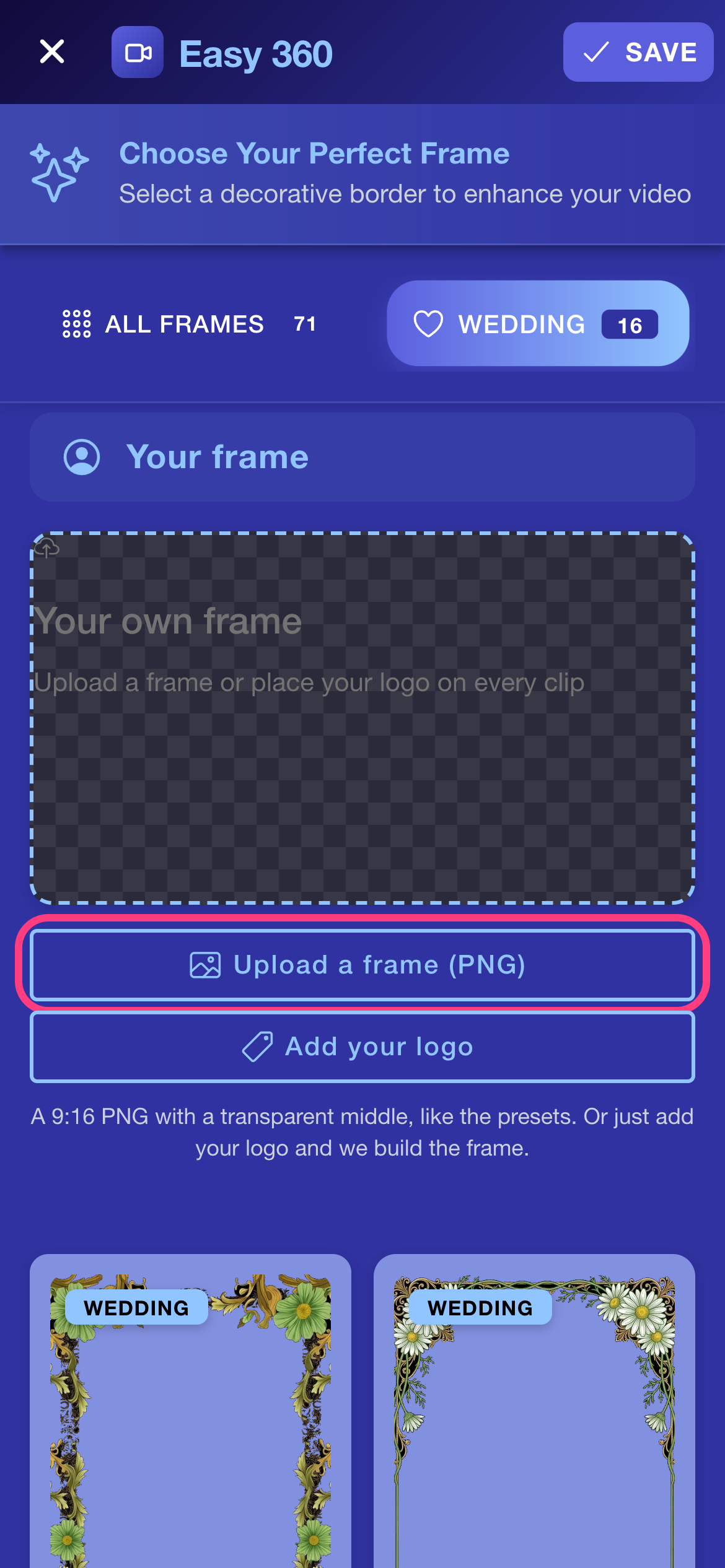
Upload your own frame
In the Your frame section, tap Upload a frame (PNG) and pick a 9:16 PNG with a transparent middle. Prefer a logo only? Tap Add your logo instead and follow step 6.
Check the preview and save the frame
Your frame appears in the preview with a tick. Tap Save at the top right to keep it.
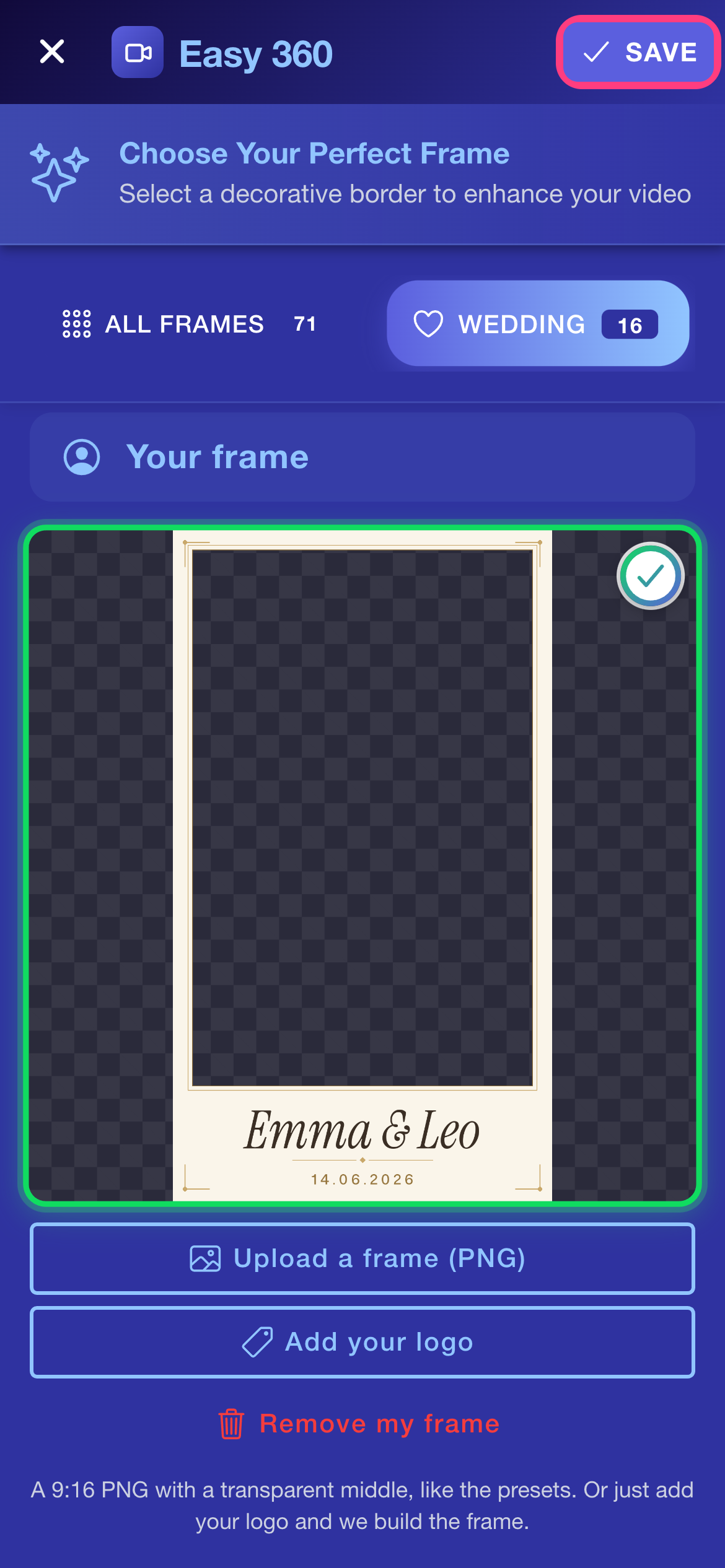
Or place just a logo
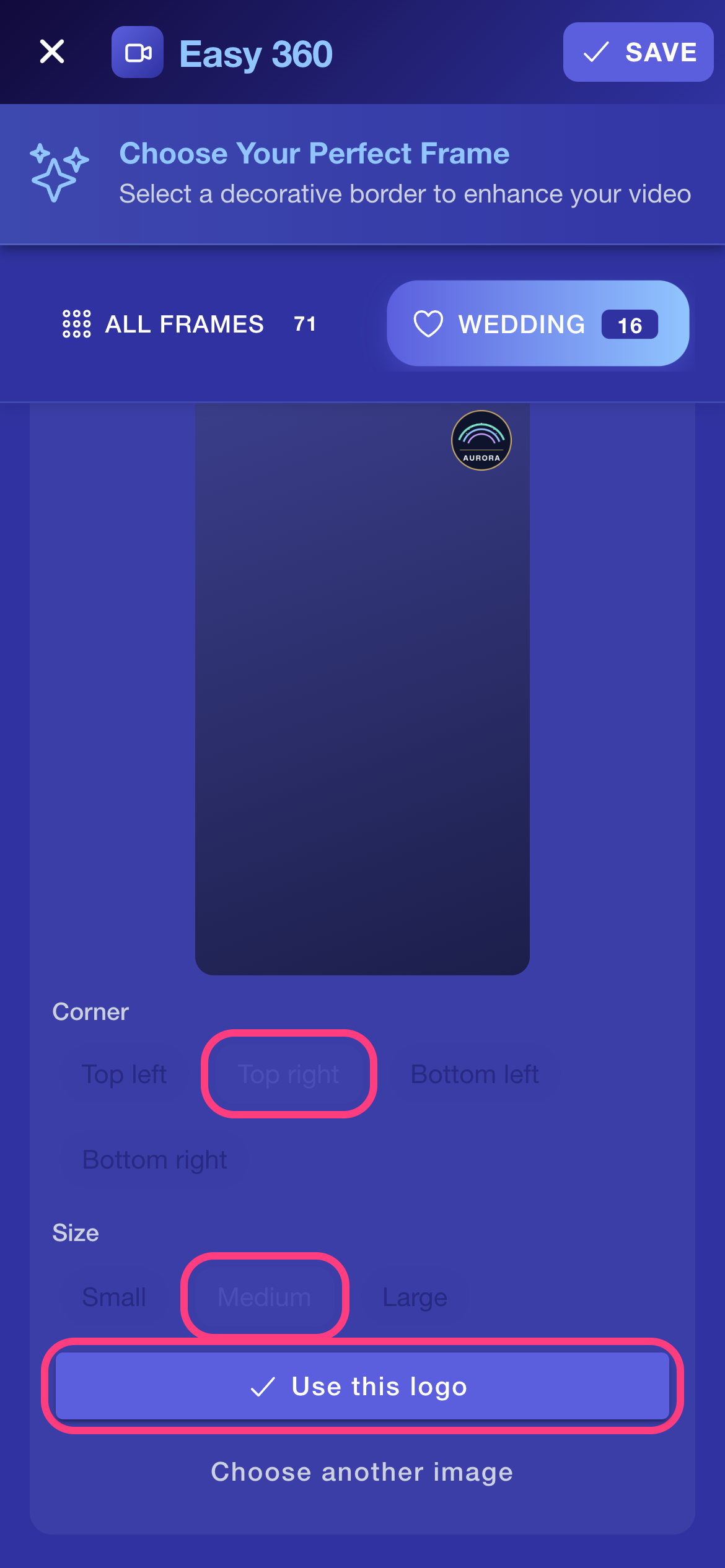
Tap Add your logo, choose your image, then pick a Corner and a Size. In the screenshot the chosen Top right corner and Medium size are circled. Tap Use this logo and Easy 360 builds the frame for you, then tap Save to confirm.
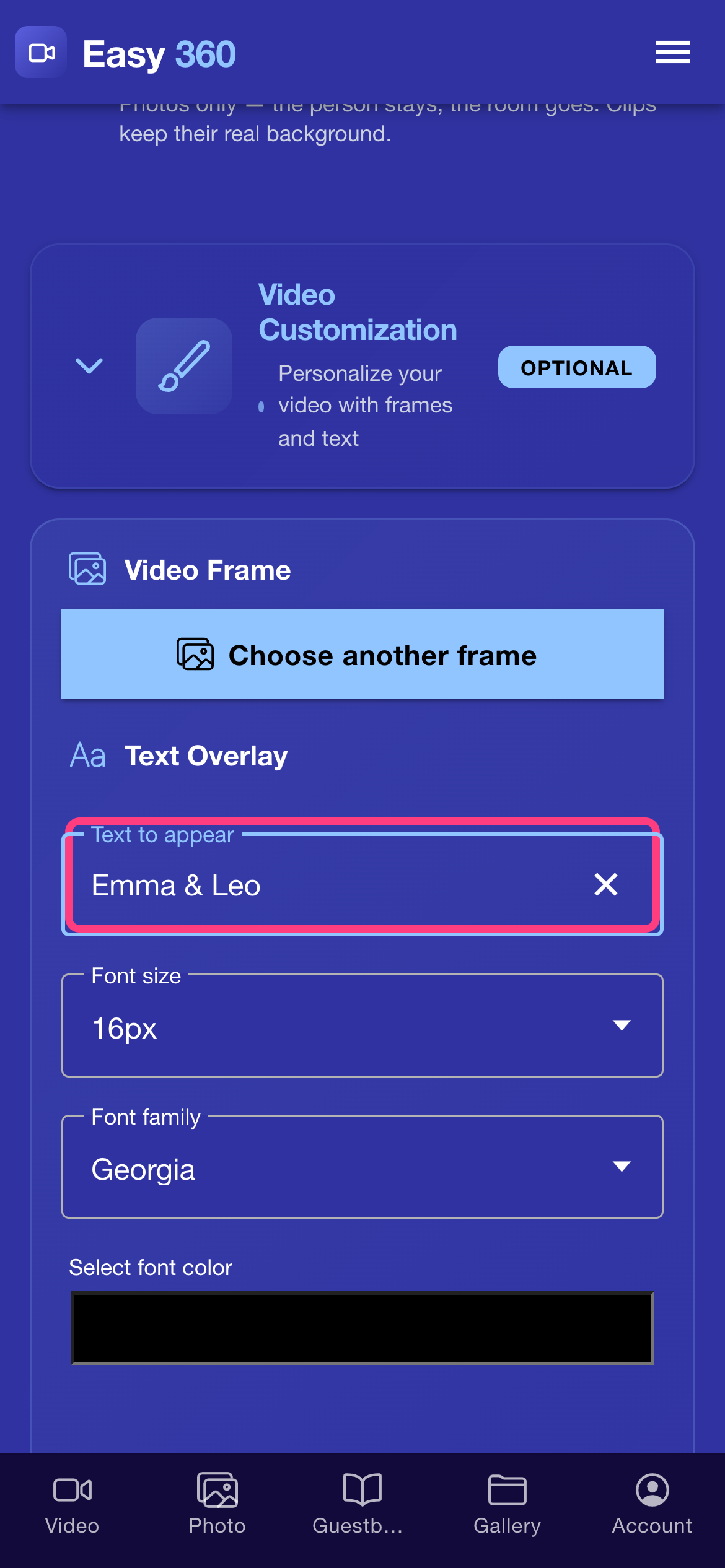
Add a text overlay
Under Text Overlay, type your text in the Text to appear field, for example the couple's names.
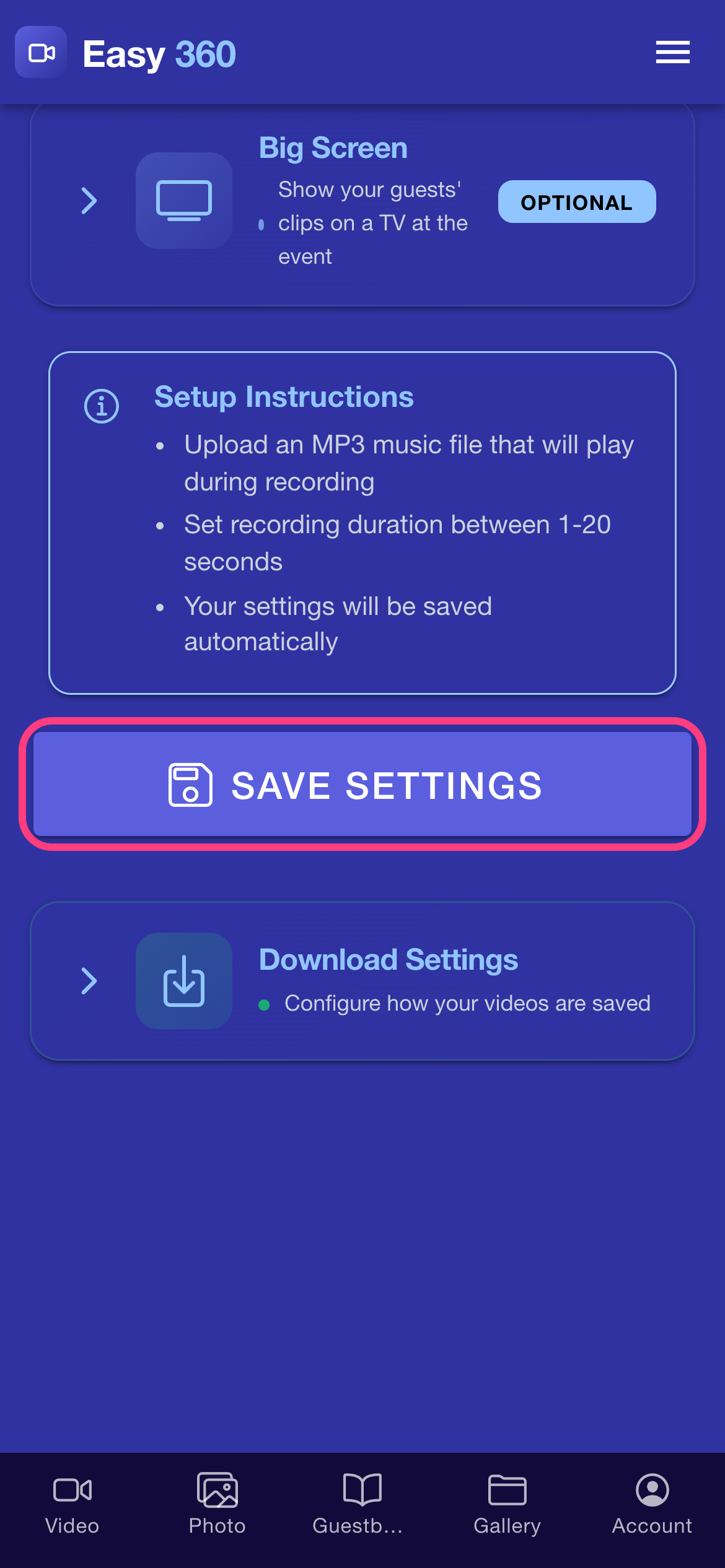
Save your settings
Scroll to the bottom and tap Save Settings so every new clip uses your branding.
Tips & troubleshooting
- If you see "The frame must be a PNG with transparency.", the file has a solid background. Export it again as PNG with the background layer hidden, so the middle stays transparent, and check that transparency is switched on in the export options.
- Keep text and logos away from the outer 5% of the frame, because some screens crop the edges.
- Free clips carry a small easy360.net watermark. It is removed on Premium.
FAQ
Can I add sponsor logos?
Yes. Put them in the frame PNG, which is how the corporate demo frame does it. You can also use the logo option for a single logo.
What size should the frame be?
1080 x 1920 pixels (9:16), with a transparent middle.
Does the frame apply to photos?
No. The video frame is applied to clips only. Photos use their own templates, which you pick in the Photo tab.
Related guides
Ready to try it on your own booth?
Run your first event with the phone you already own. Try Easy 360 free, no card required.
Open the web app