How to Share 360 Videos With Guests by QR Code
Set the event name, record a clip and hand your guest a QR code. Their phone opens a clip page with a player, Download and Share, no app needed.
~4 min
Name your event before it starts
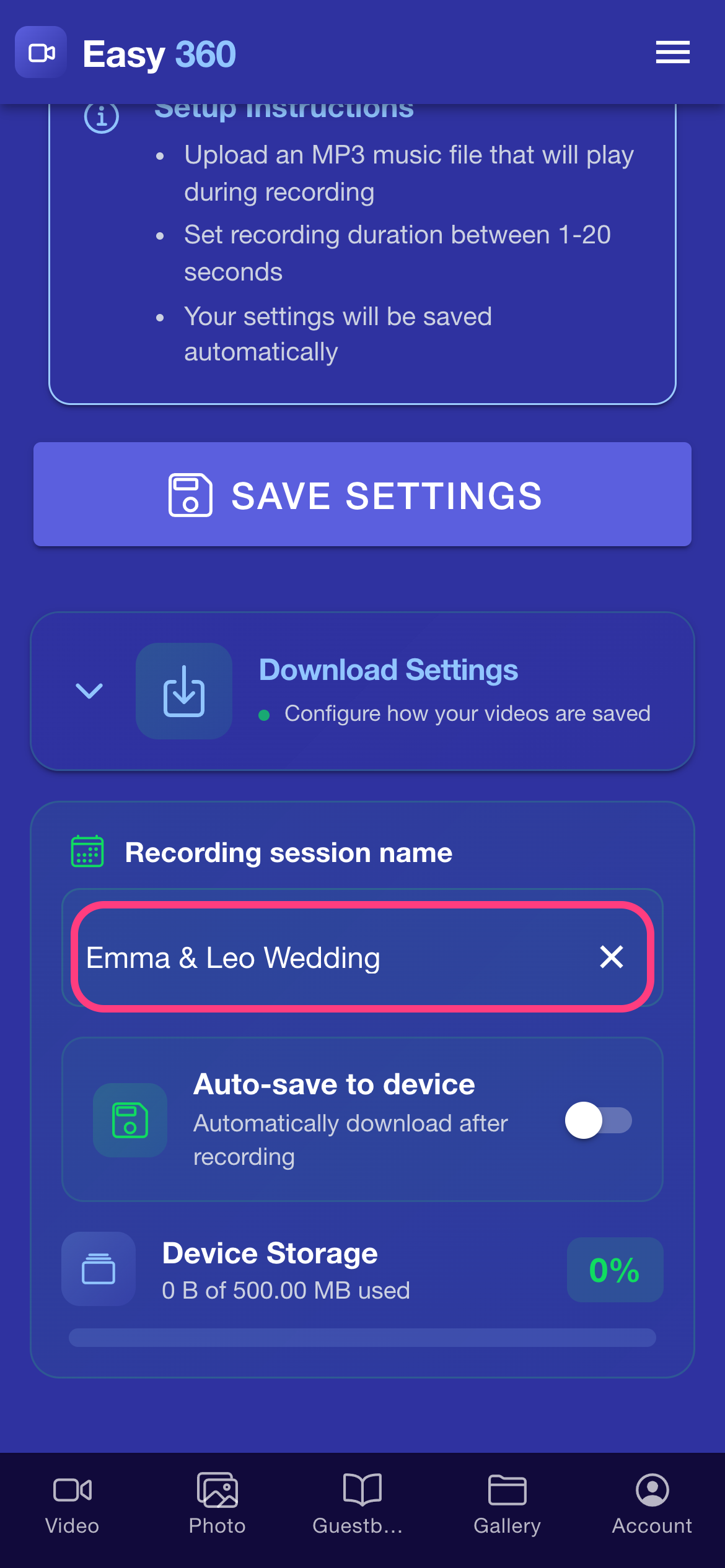
Open Settings from the menu, open Download Settings and type the event in Recording session name. Do this before the event: clips recorded without a name are called Event - followed by the date.
Check the name on the Video tab
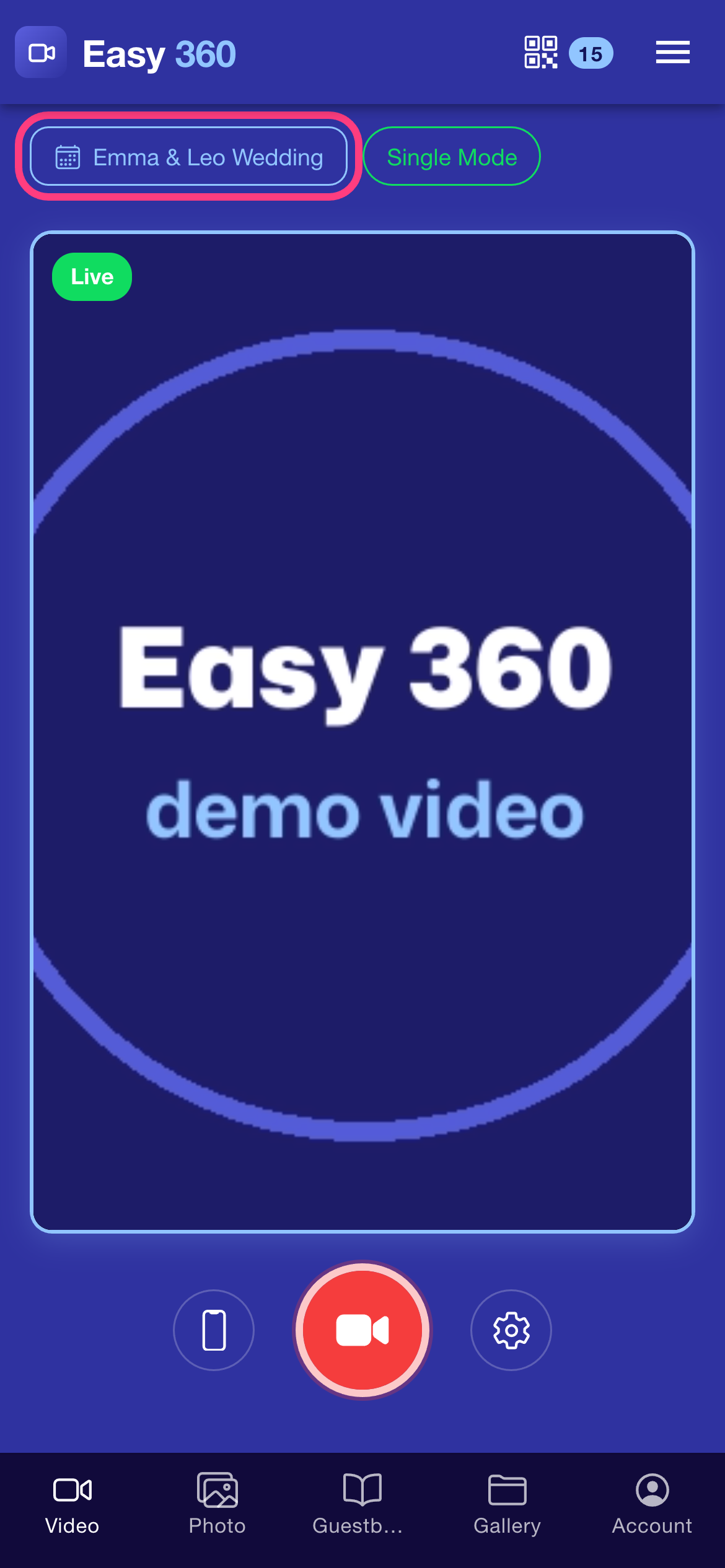
Go back to the Video tab. The event name shows as a chip at the top of the screen, so you can confirm it before the first guest steps in.
Record and show the QR code
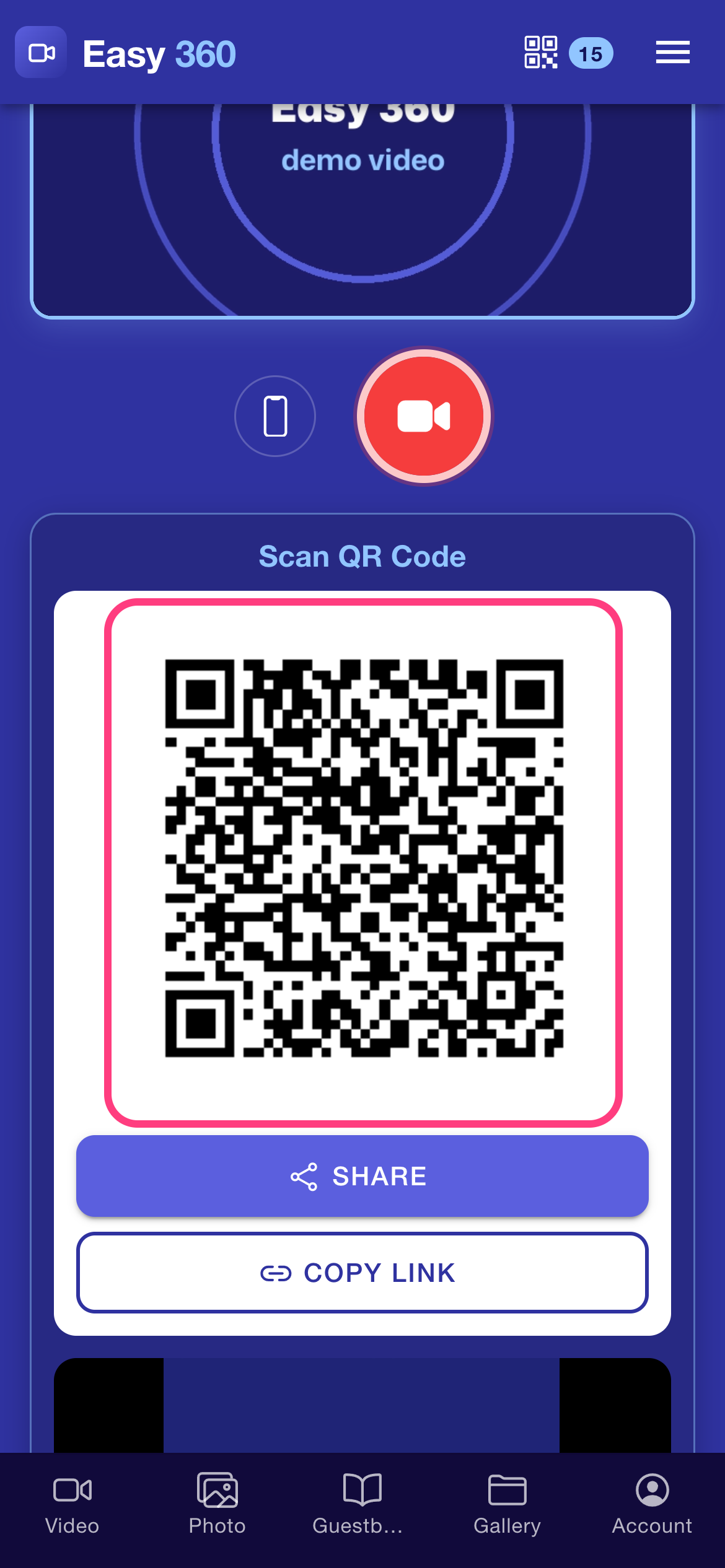
Press the red record button and, if the consent sheet appears, tap I Agree — Start Recording. When the clip is ready, Scan QR Code appears under the preview. Your guest points their phone camera at it.
Send the link another way
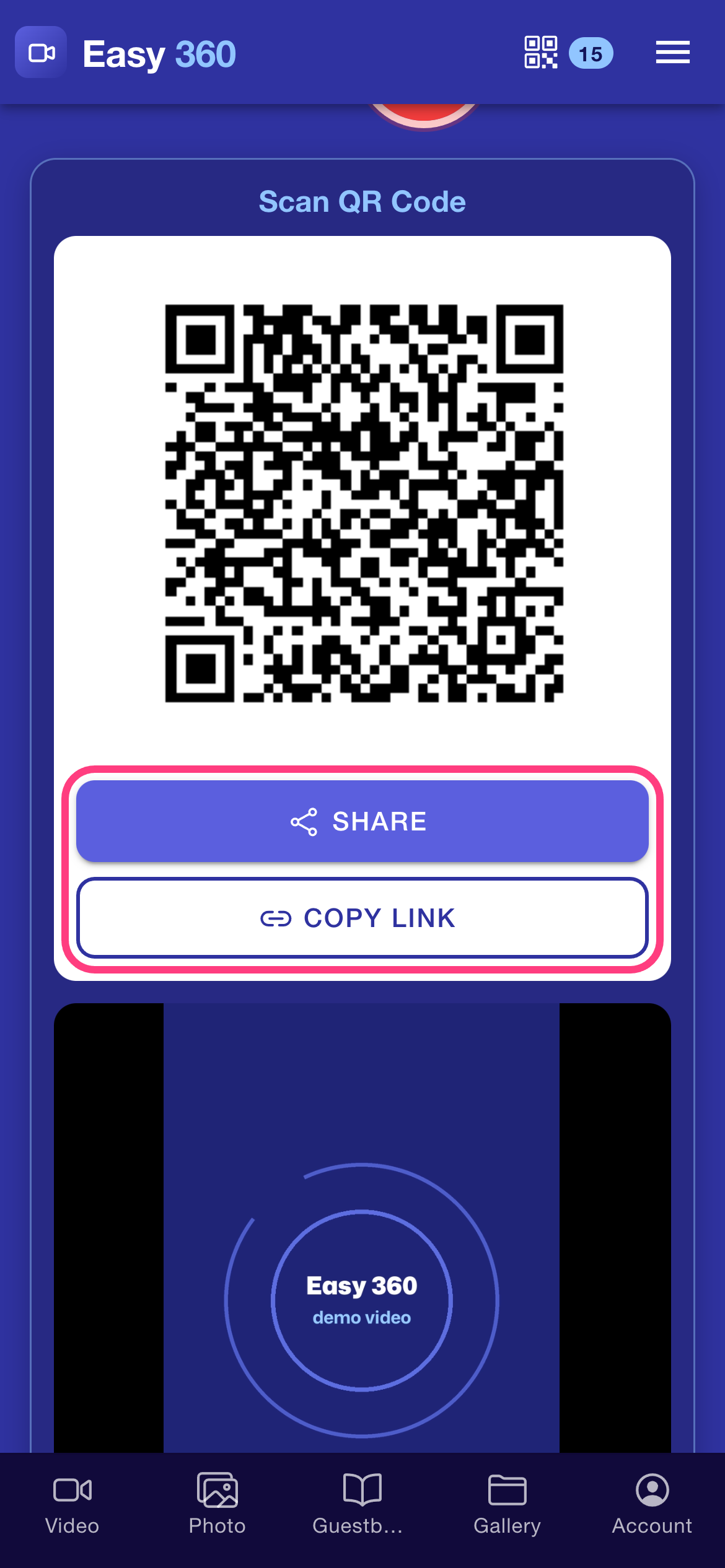
A guest who cannot scan the code can get the same link from you. Tap Share to send it through your phone's share sheet, or Copy link to paste it into a message.
What your guest sees
The QR code opens a clip page in the phone's browser, with no app needed. It shows the event name, a video player, Download and Share buttons, the date the link expires, and links to the App Store and Google Play.
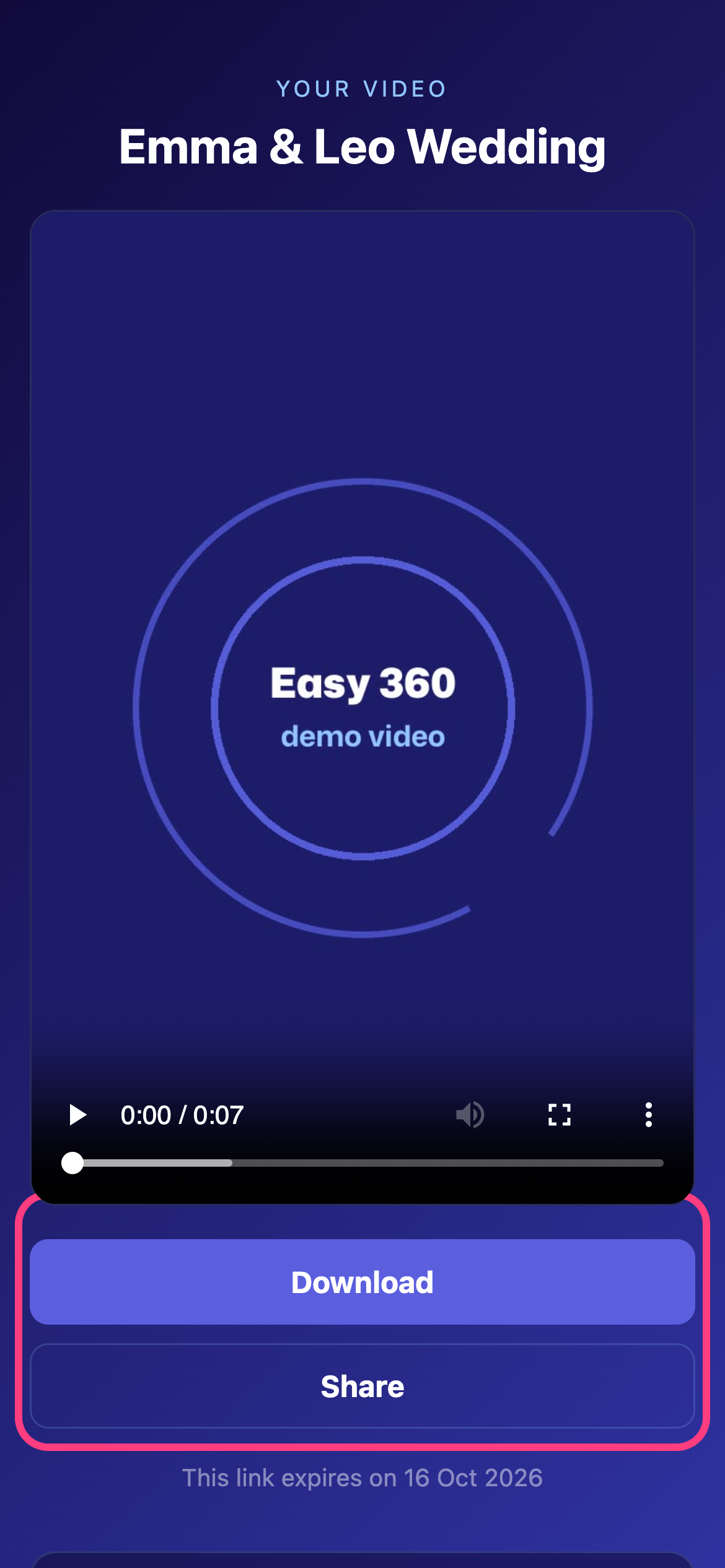
The result
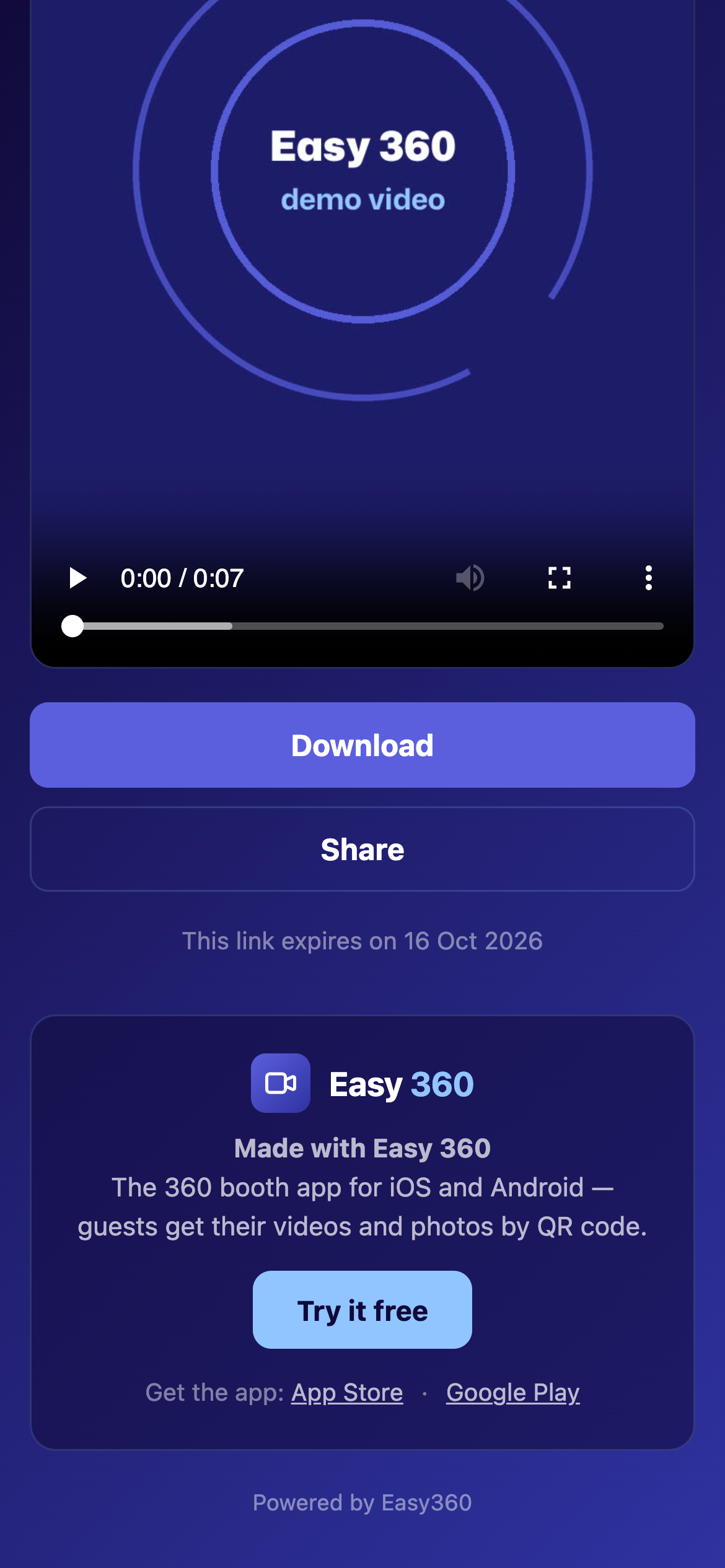
Guests can also get the app from the clip page, with links to the App Store and Google Play.
Tips & troubleshooting
- The event name is the clip page title and the start of the downloaded file name, followed by the capture date and a short code, so name each event differently to tell the files apart.
- The clip page says when the link expires. Delivery links expire after 7 days, and the file is removed after that, so remind guests to tap Download on the day.
- Free clips carry a small easy360.net watermark. It is removed on Premium.
- Keep the phone online while a guest scans. If the clip is still processing, the page says Your clip is being prepared. This page will update on its own.
FAQ
How long does a guest have to download their clip?
The link expires 7 days after the clip was recorded. The clip page shows the exact date, and the file is removed once the link has expired.
Does my guest need the Easy 360 app?
No. The QR code opens a normal web page in the phone's browser, where the guest can watch, download and share the clip.
Can I change the event name between events?
Yes. Change Recording session name in Download Settings before the next event. New clips use the new name.
Related guides
Ready to try it on your own booth?
Run your first event with the phone you already own. Try Easy 360 free, no card required.
Open the web app