How to See a Live Preview of Your 360 Booth Camera
With two phones on one account, the controller phone shows a live picture from the camera phone on the arm, so you can frame guests and watch every spin.
~3 min
Put Device 1 on the arm
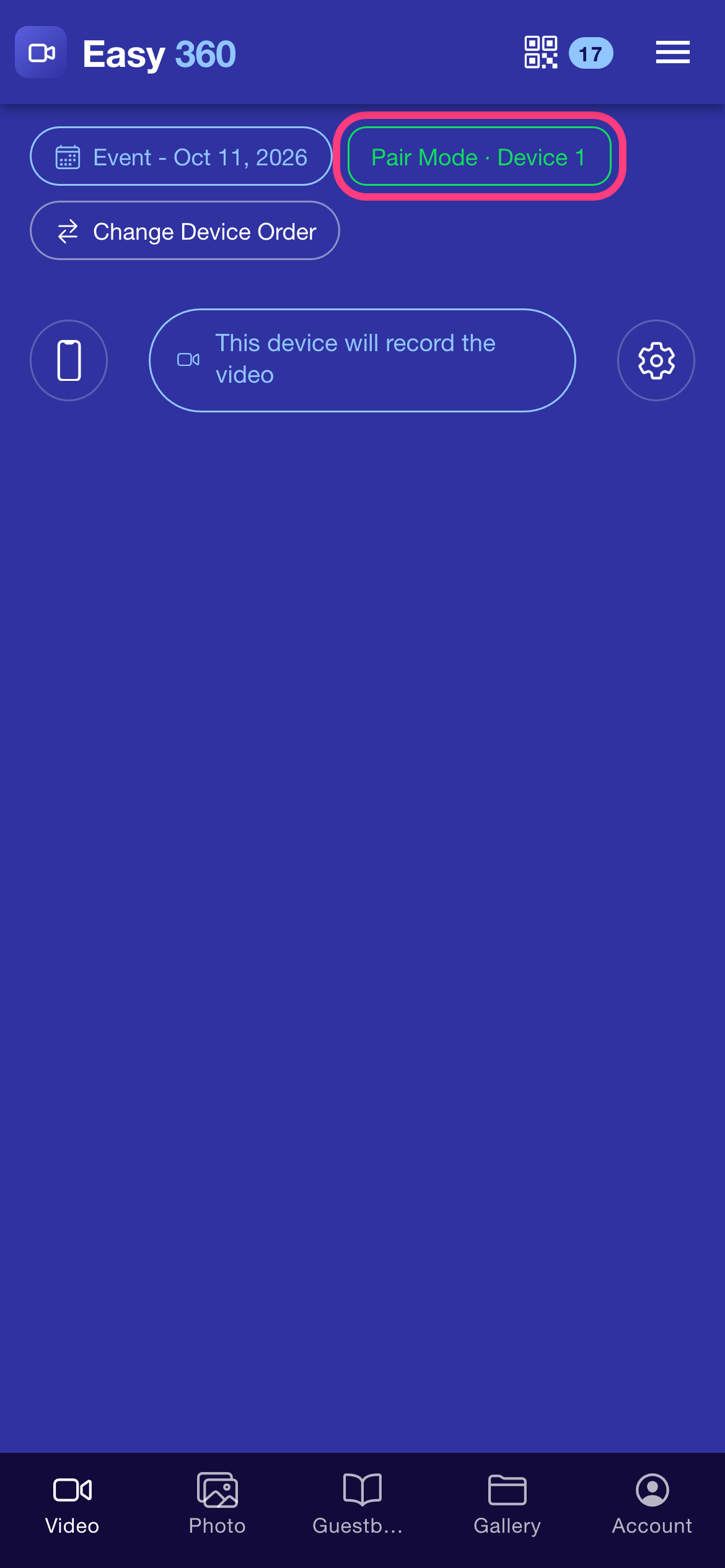
Sign in on both phones with the same account. The phone whose chip reads Pair Mode with Device 1 is the camera: it shows This device will record the video. Mount it on the 360 arm.
Open the Video tab on Device 2
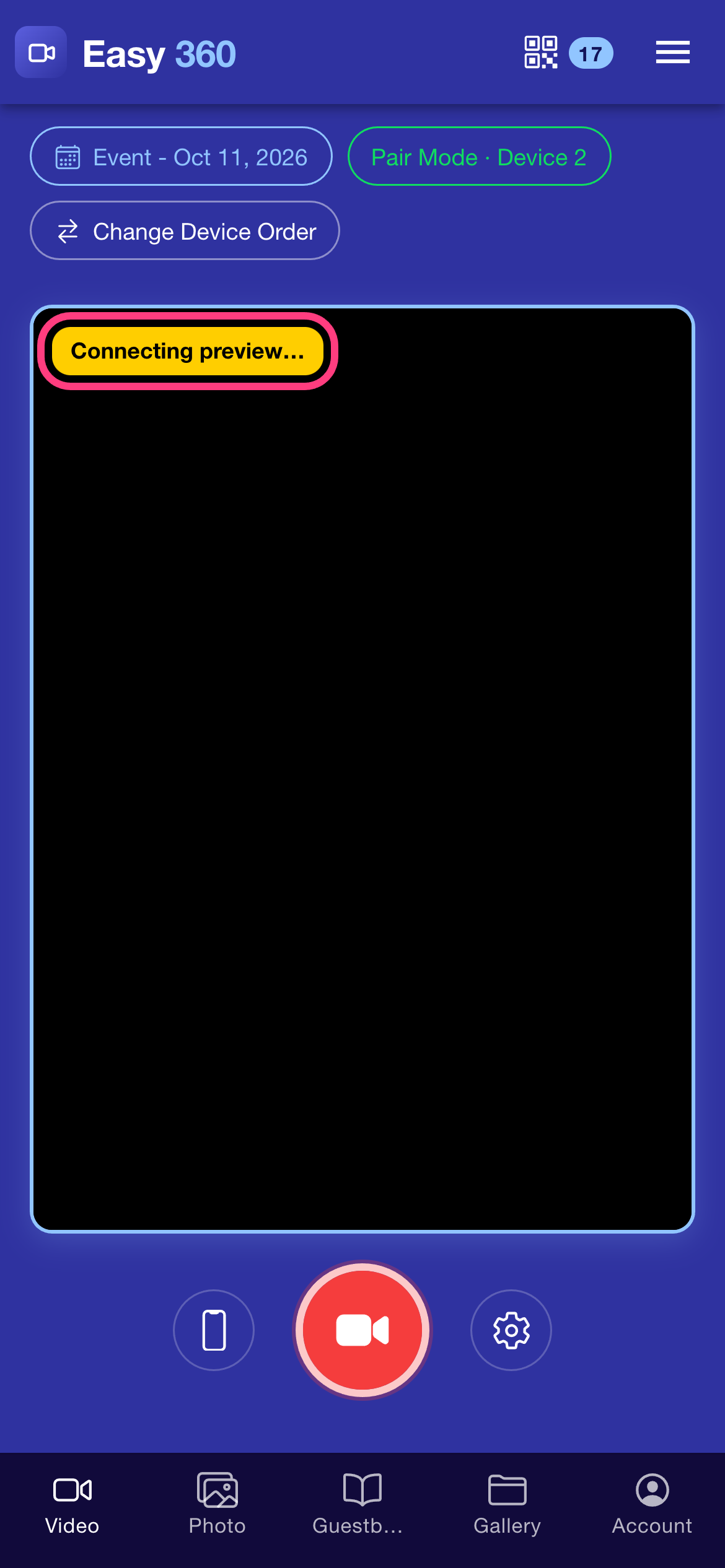
On the second phone, the preview panel appears at the top of the Video tab. While the two phones find each other, the chip reads Connecting preview…. This usually takes a few seconds.
Frame the shot while it reads Live
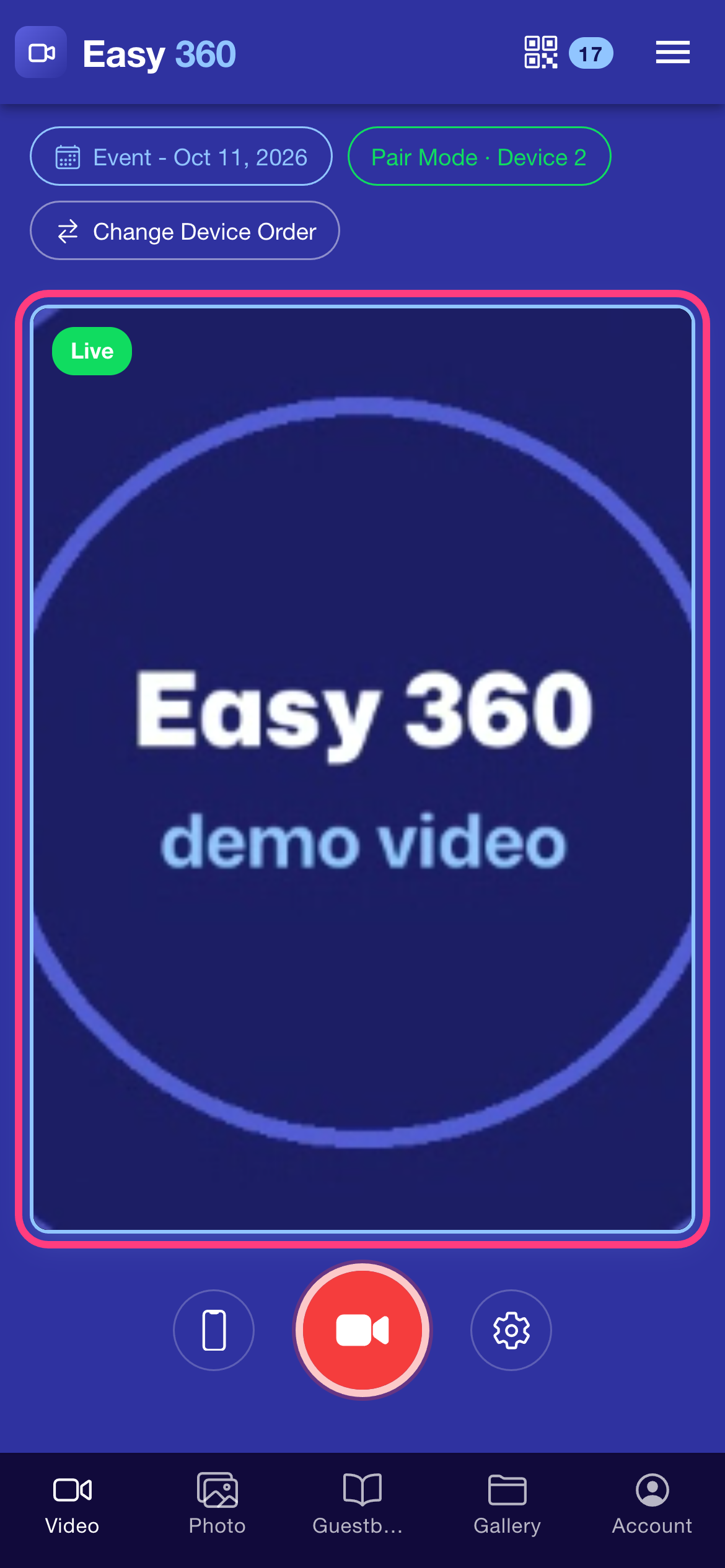
Once the chip turns green and reads Live, the panel shows what the camera phone sees. Use it to place the guests in the middle of the platform and to check the light before you start.
Watch the spin while it records
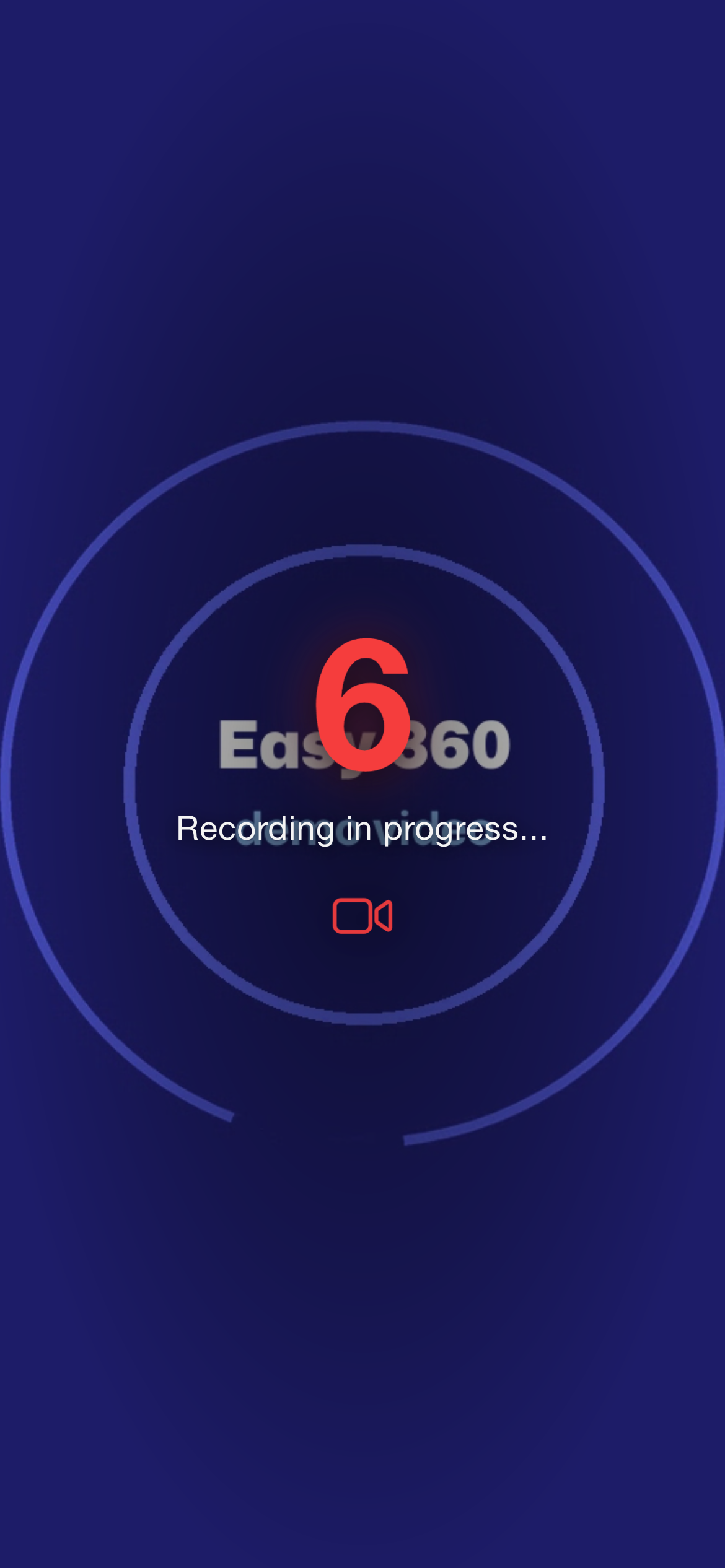
Press the red record button on Device 2. After the countdown the preview fills the screen with Recording in progress..., so you can watch the whole spin from where you stand. When it finishes, the QR code for the guest appears on the same phone.
Tips & troubleshooting
- Preview reconnecting… means the connection dropped for a moment. The picture dims and comes back by itself. Recording still works while it reconnects.
- Live preview unavailable on this network means the network blocks the video stream, which some venue and guest Wi-Fi networks do. Switch one or both phones to mobile data, or use a different Wi-Fi network. You can still record and get the QR without the preview.
- Camera unavailable — check app permissions means the camera phone cannot open its camera. Allow camera access for Easy 360 in that phone's settings and open the app again.
- Update the camera phone's app for live preview means the camera phone runs an older version of Easy 360. Update it from the App Store or Google Play.
- Camera phone not responding means the other phone sent nothing at all, for example because it is switched off or the app is closed. If you are not using it any more, tap Continue on this device to carry on with one phone.
- Keep the Easy 360 app open in the foreground on the camera phone. If it goes to the background or the screen locks, the preview stops.
FAQ
Does the live preview need Premium?
No. The live preview works on the free plan whenever two phones are signed in to the same account.
Do both phones need to be on the same Wi-Fi?
No. The preview travels over the internet, so each phone can use its own Wi-Fi or mobile data. A stable connection on both gives the sharpest picture.
Is the preview the same quality as the final clip?
No. The preview is a lighter stream made for framing. The camera phone records the clip at full quality, and that is what your guests get.
Related guides
Ready to try it on your own booth?
Run your first event with the phone you already own. Try Easy 360 free, no card required.
Open the web app