How to Add Slow Motion or Boomerang to 360 Videos
Pick one motion effect, such as slow motion or boomerang, and Easy 360 applies it to every clip it makes, with your frame and music on top.
~2 min
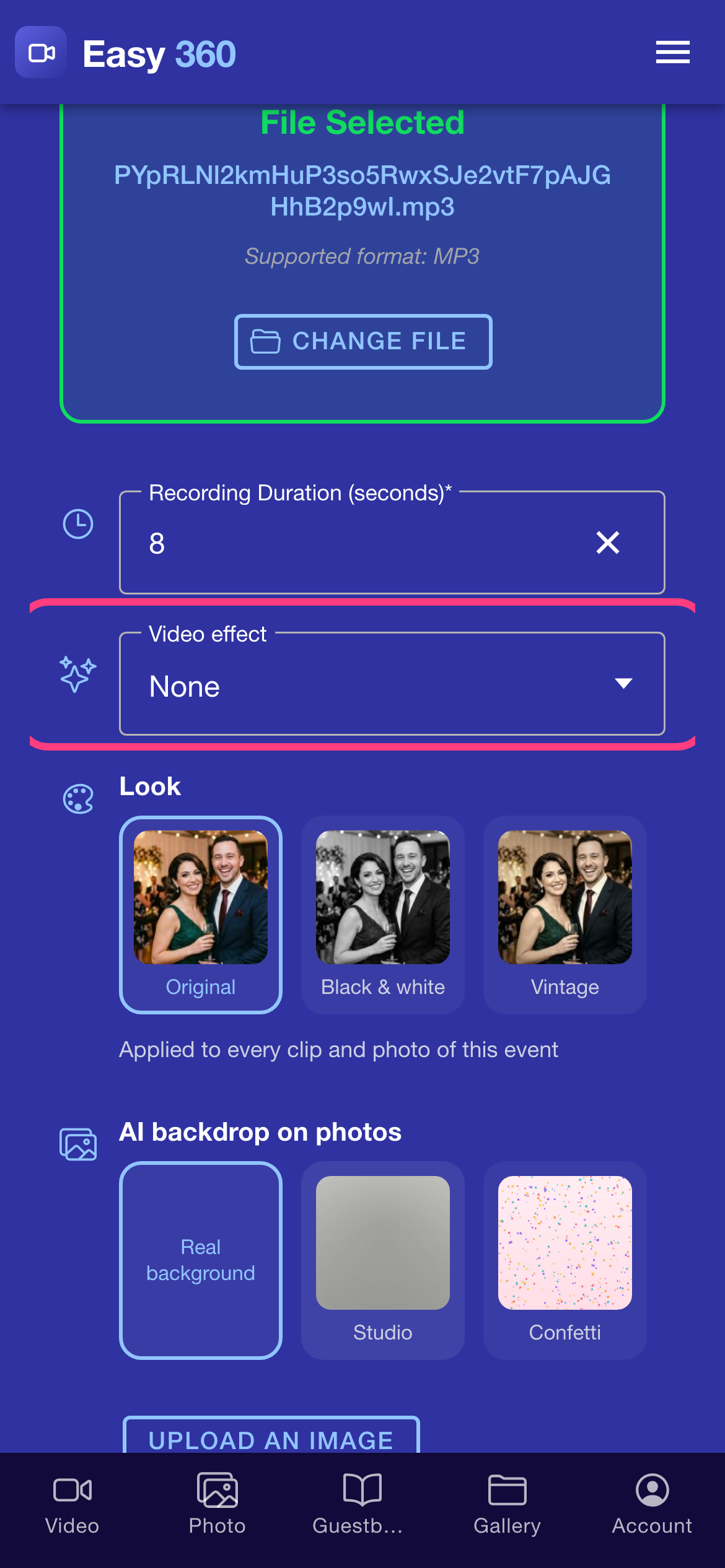
Find the Video effect field
Open the menu, tap Settings and scroll down through Recording Configuration, past the music and the recording duration, to Video effect. A new account starts on None.
Open the list of effects
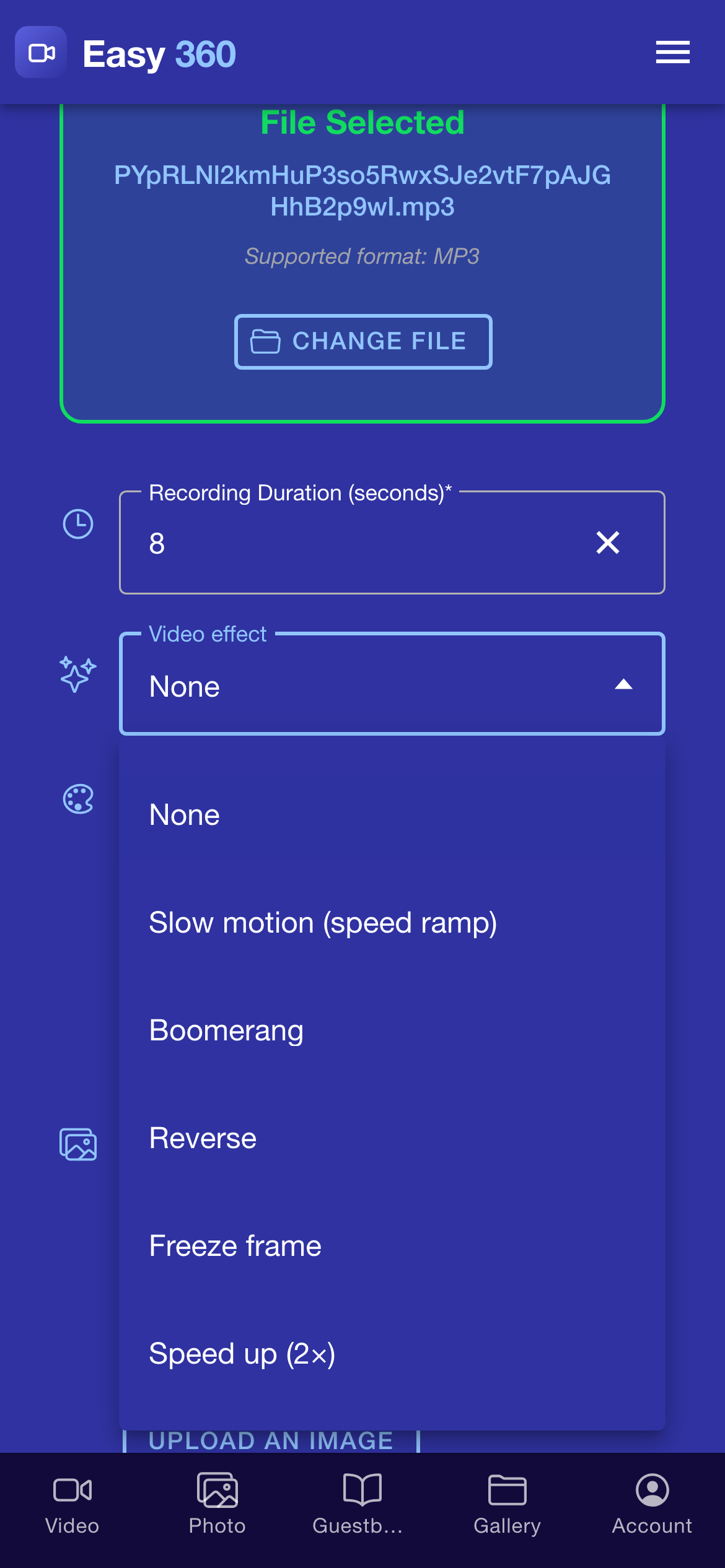
Tap the field to see the six options. Slow motion (speed ramp) plays the start at normal speed, slows the middle half of the clip down, then speeds up again. Boomerang plays the clip forwards and then backwards. Reverse plays the whole clip backwards. Freeze frame holds the last frame for 2 seconds at the end. Speed up (2×) plays the whole clip at double speed.
Pick an effect
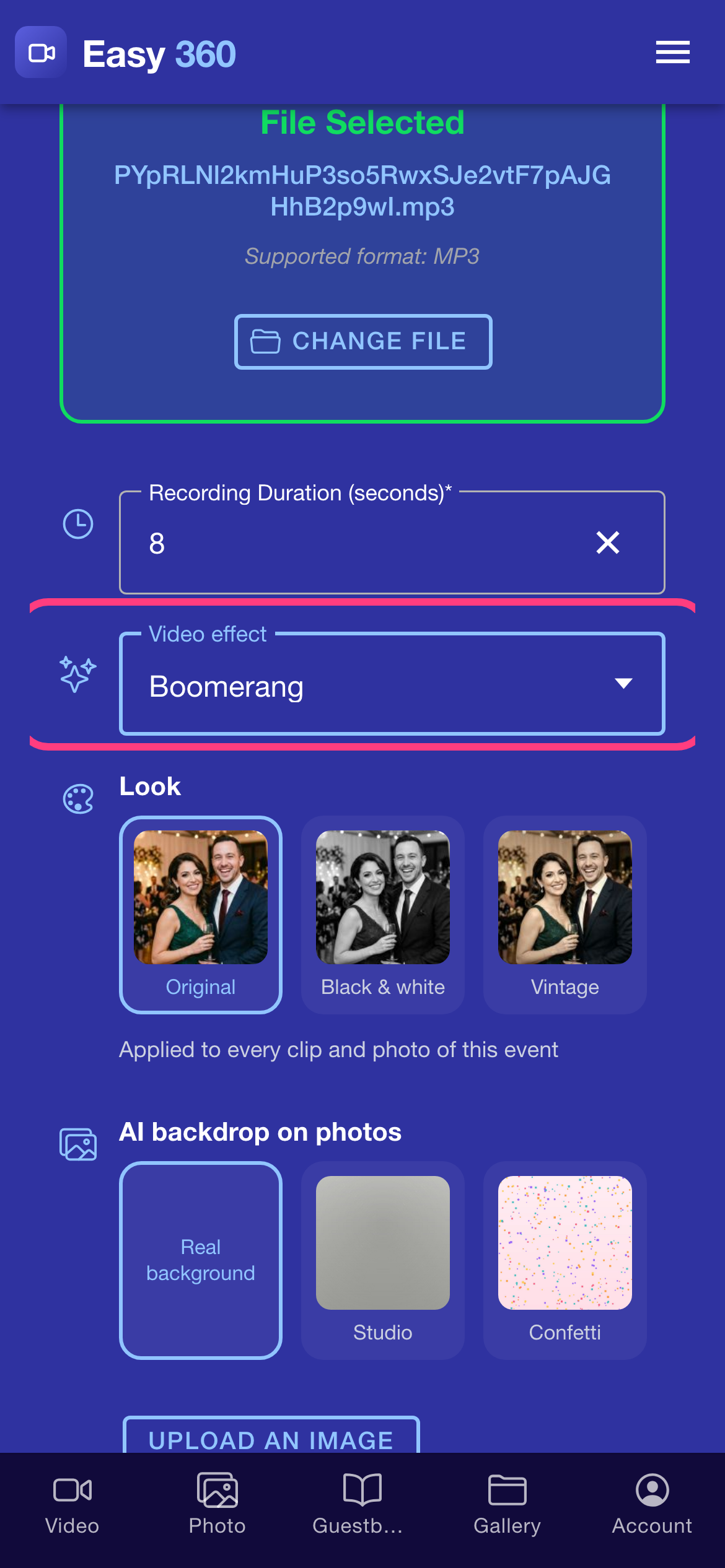
Tap the effect you want, for example Boomerang. The field now shows your choice.
Save your settings
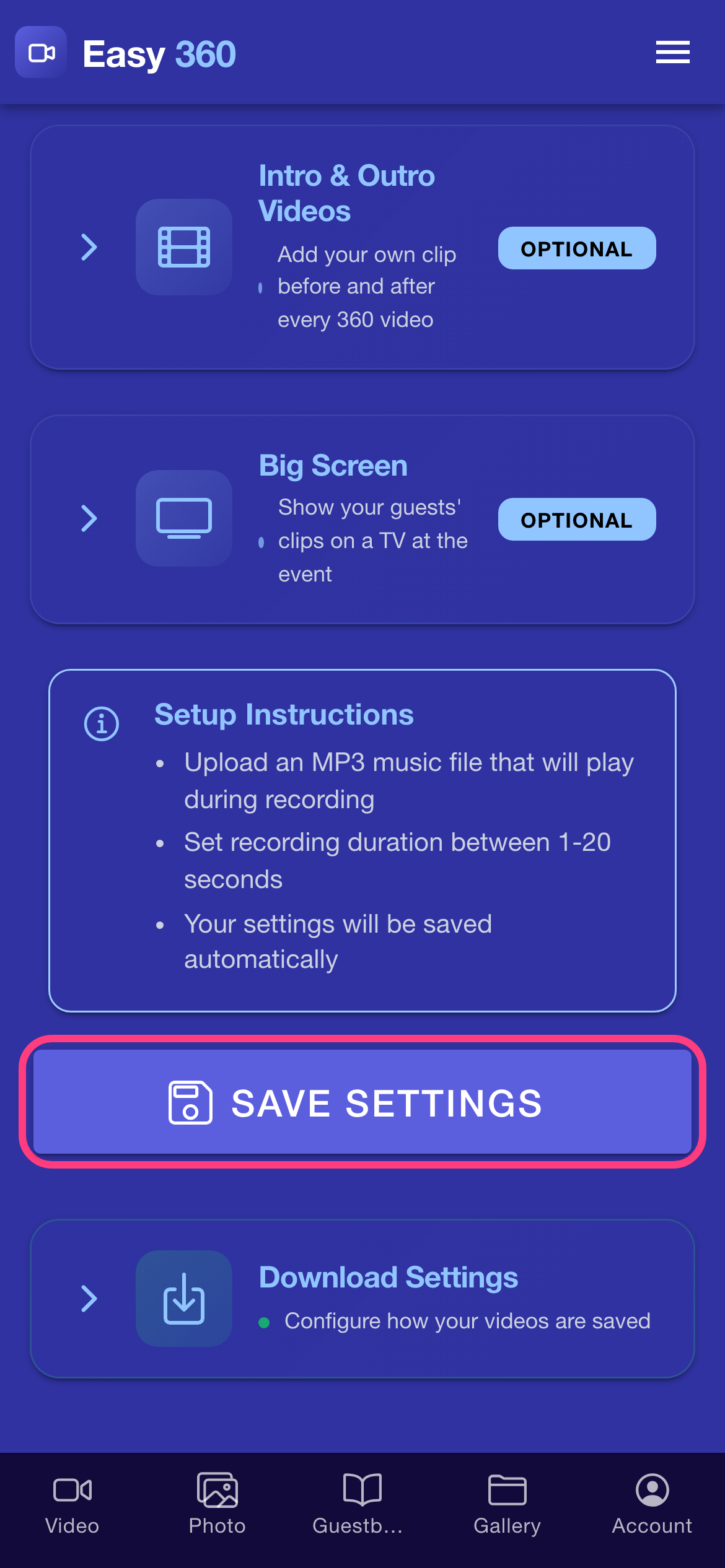
Scroll down and tap Save Settings. Every clip you record from now on gets the effect, until you set the field back to None and save again.
Tips & troubleshooting
- Effects change the length of the clip. Boomerang doubles it, slow motion makes it longer, freeze frame adds 2 seconds and Speed up halves it. Adjust the Recording Duration in the same section to get the final length you want.
- Slow motion looks best when the arm spins fast and the guests move a lot, for example with confetti, a dress twirl or a jump.
- Boomerang and Reverse take a little longer to process than the other effects, so the QR code appears a few seconds later.
- Your frame, logo and text overlay stay the right way round with every effect. Only the motion changes.
FAQ
Can I combine two effects, like slow motion and boomerang?
No. One effect applies at a time. Pick the one that suits the event, and change it between events if you like.
Do I need Premium for effects?
No. All six effects work on the free plan too.
Does the effect change clips I already recorded?
No. It applies to new clips only. Clips that are already made stay as they are.
Related guides
Ready to try it on your own booth?
Run your first event with the phone you already own. Try Easy 360 free, no card required.
Open the web app