How to Add an Intro and Outro to 360 Booth Videos
Add a short branded clip that plays before (intro) and after (outro) every 360 video, either your own MP4 or a ready-made animated template with your text.
~4 min Premium See plans
Open Intro & Outro Videos
Open the menu, tap Settings and scroll to the Intro & Outro Videos card. Tap it to expand it.
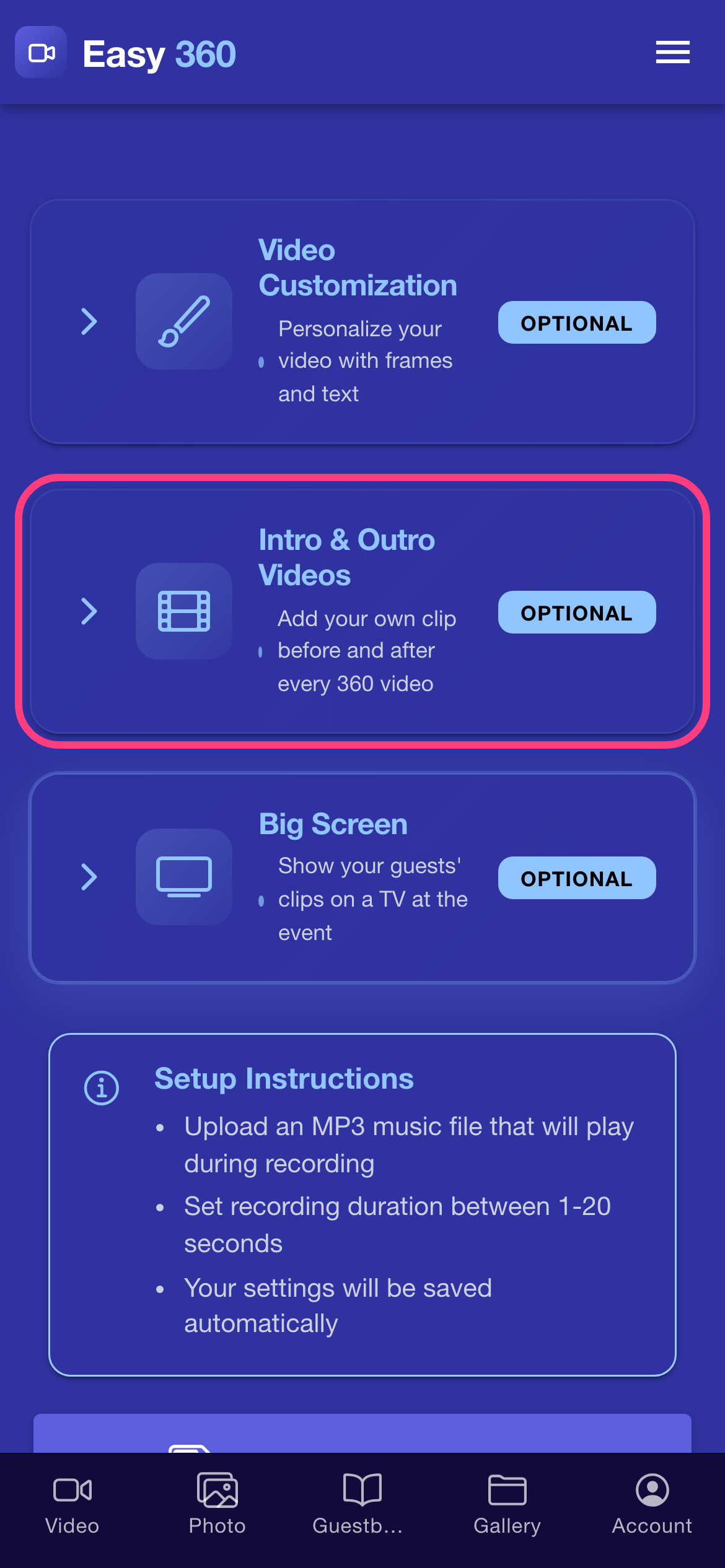
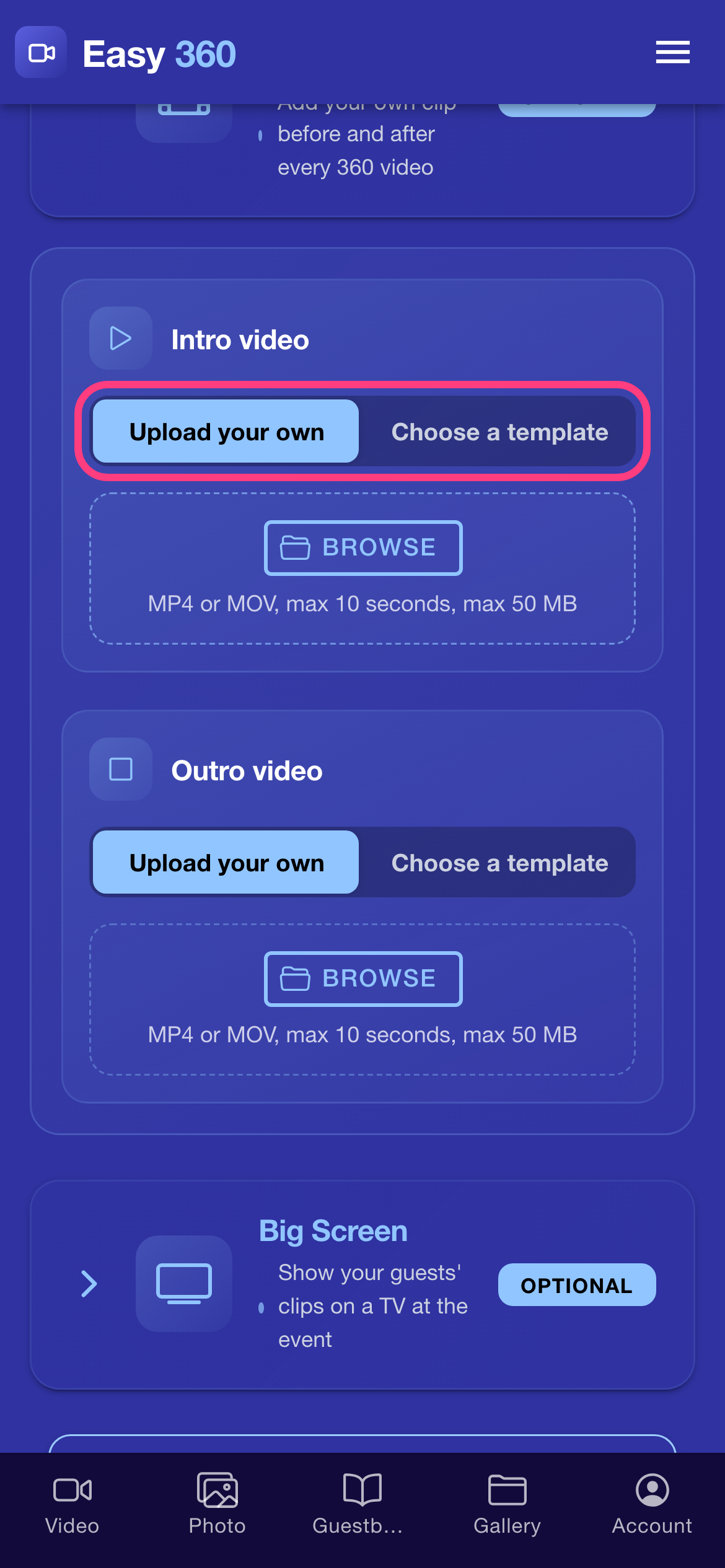
Pick the source for the intro
The intro and the outro each have their own card. For each one, choose Upload your own to use a clip you made, or Choose a template to use a built-in animation with your text.
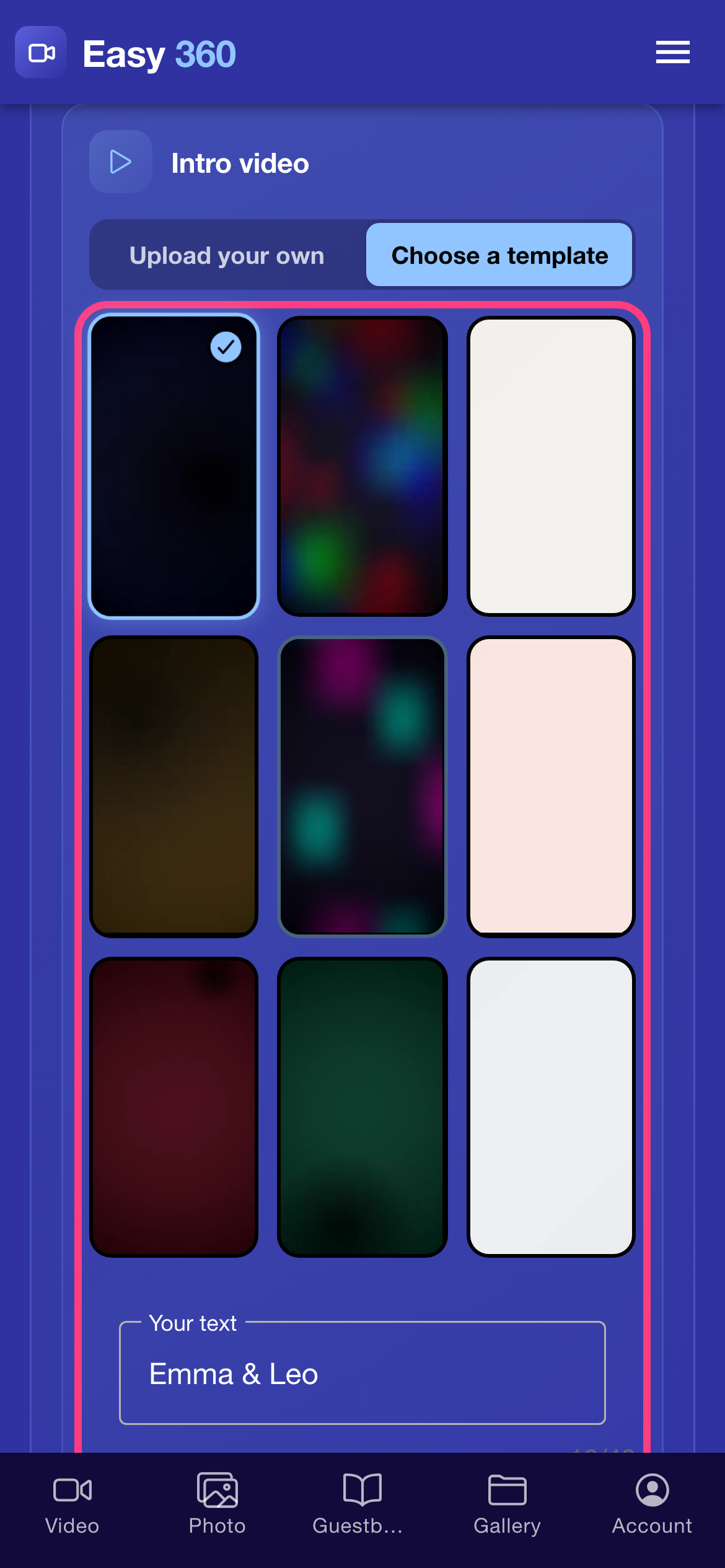
Choose a template and type your text
With Choose a template selected, tap one of the animated tiles, then type your text, for example the couple's names, in Your text. The counter under the field shows how many characters the template fits.
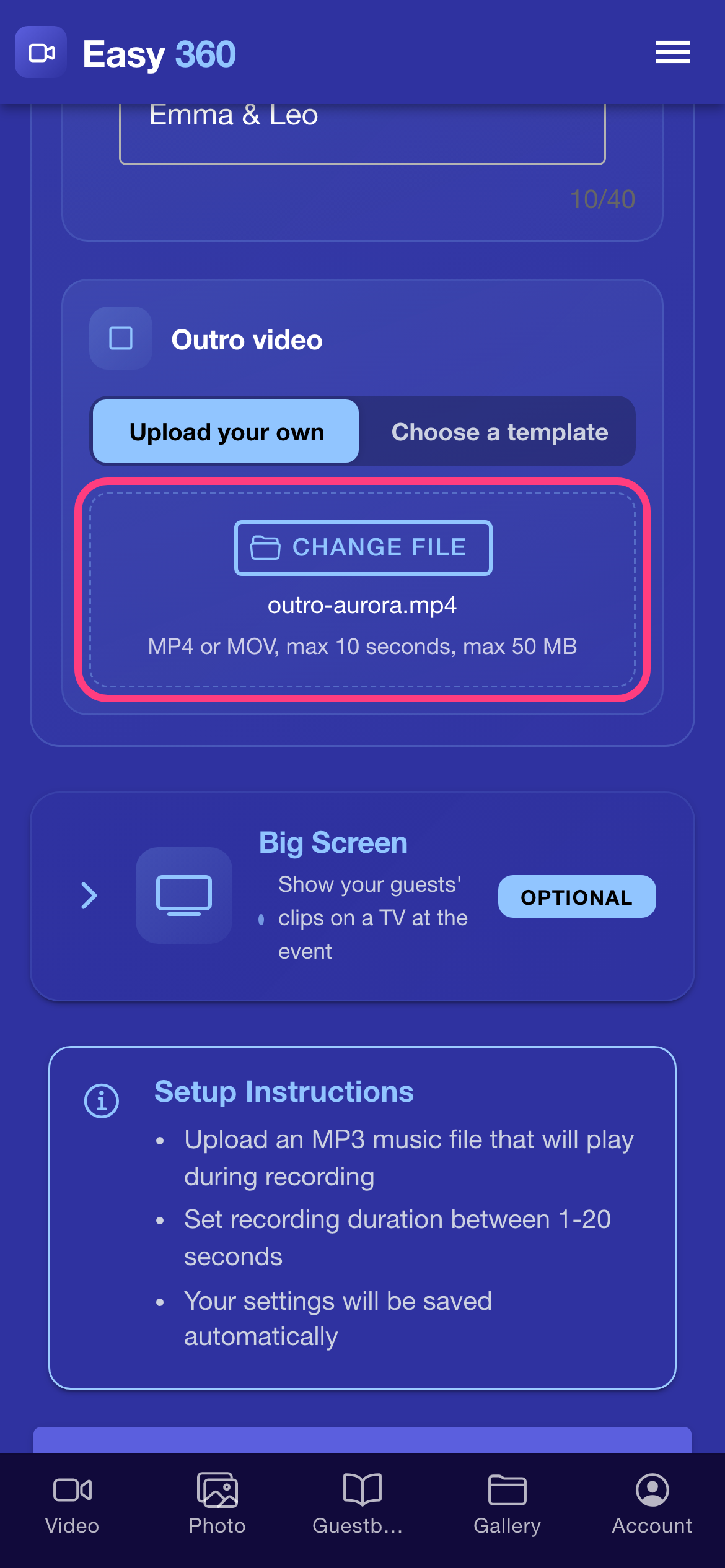
Or upload your own clip
With Upload your own selected, tap Browse and pick your clip. The file name appears under the button. The clip must be MP4 or MOV, max 10 seconds, max 50 MB.
Save your settings
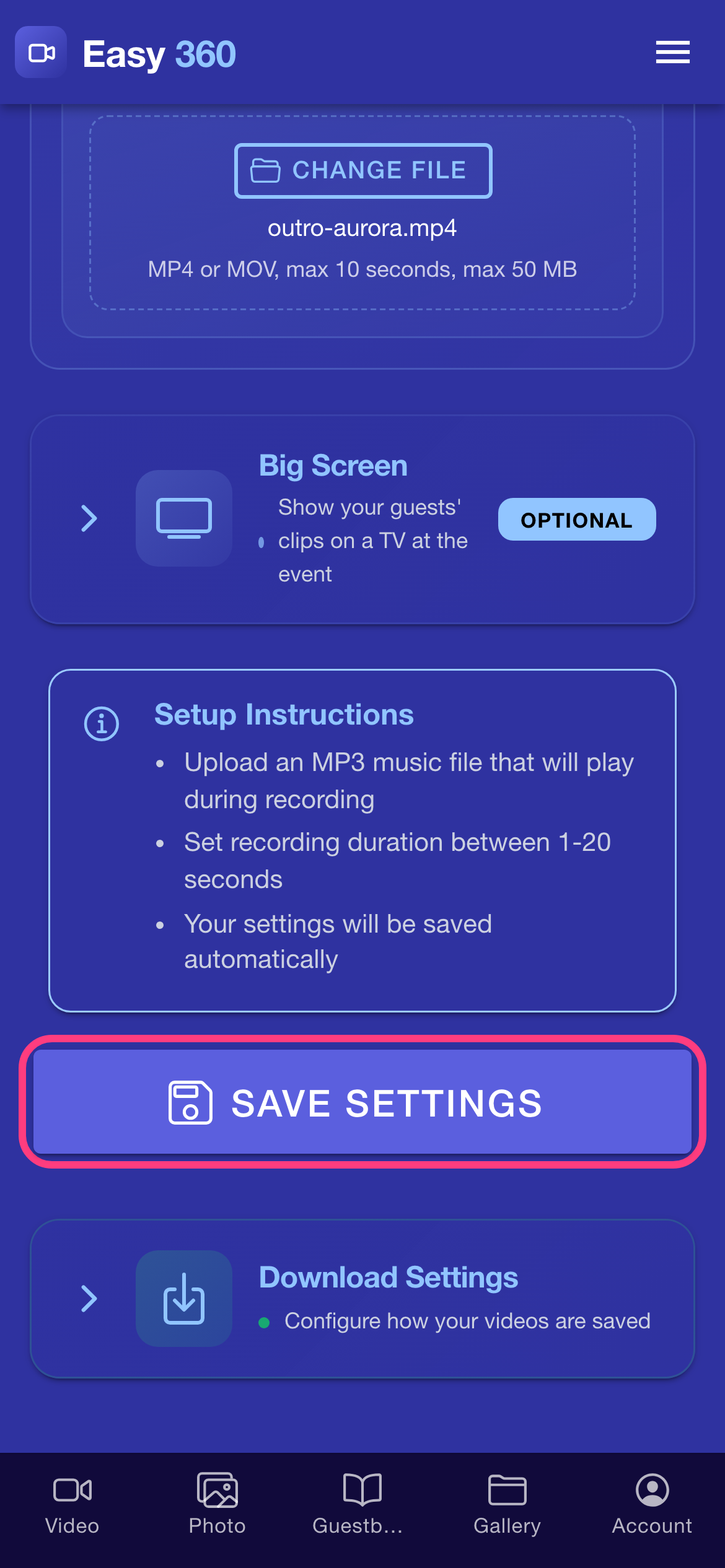
Scroll down and tap Save Settings. Nothing is uploaded or changed until you save.
Wait for Ready
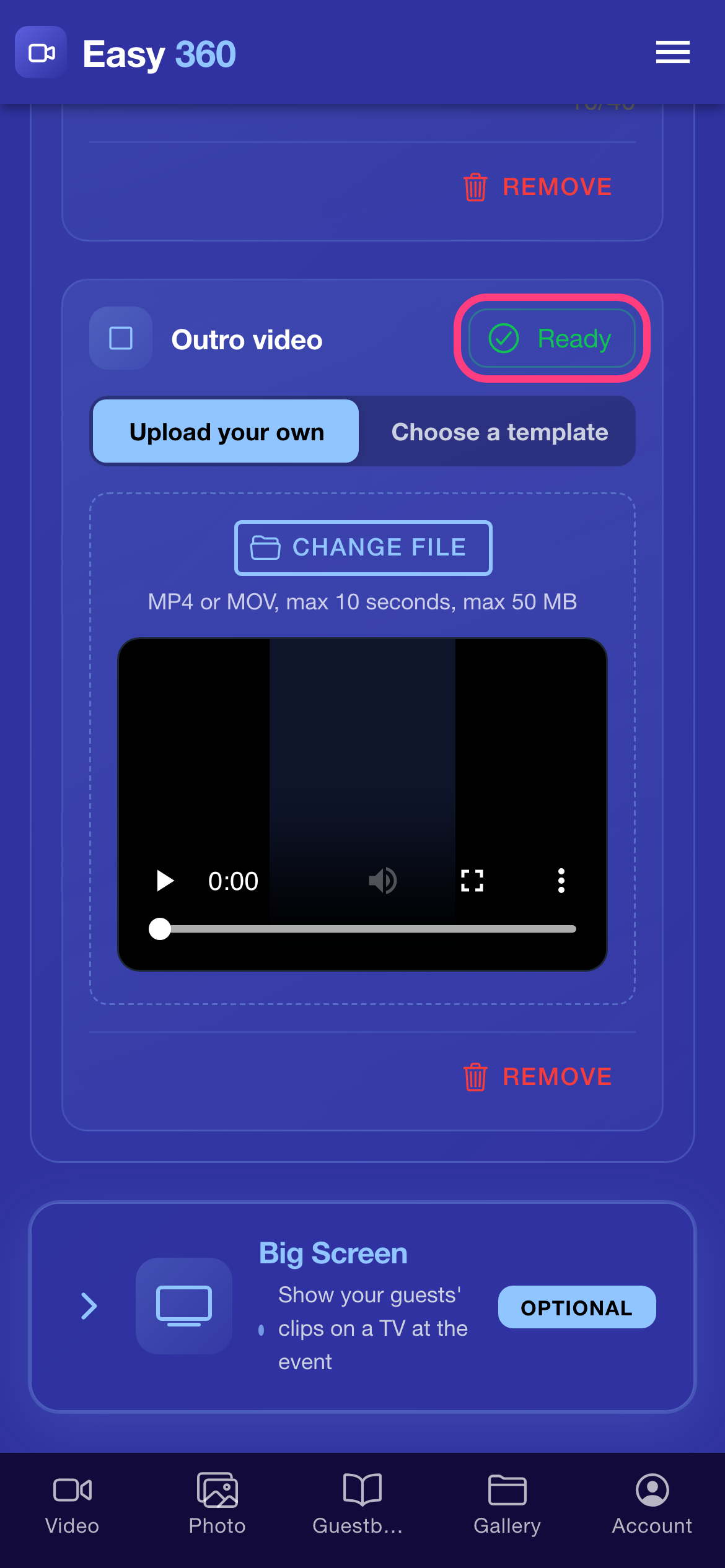
Each card shows a status chip. Processing… means the server is preparing the clip, which takes a few seconds for an upload and a little longer for a template. Once it reads Ready, the clip plays before or after every new 360 video. An uploaded clip also shows a preview player.
Remove an intro or outro
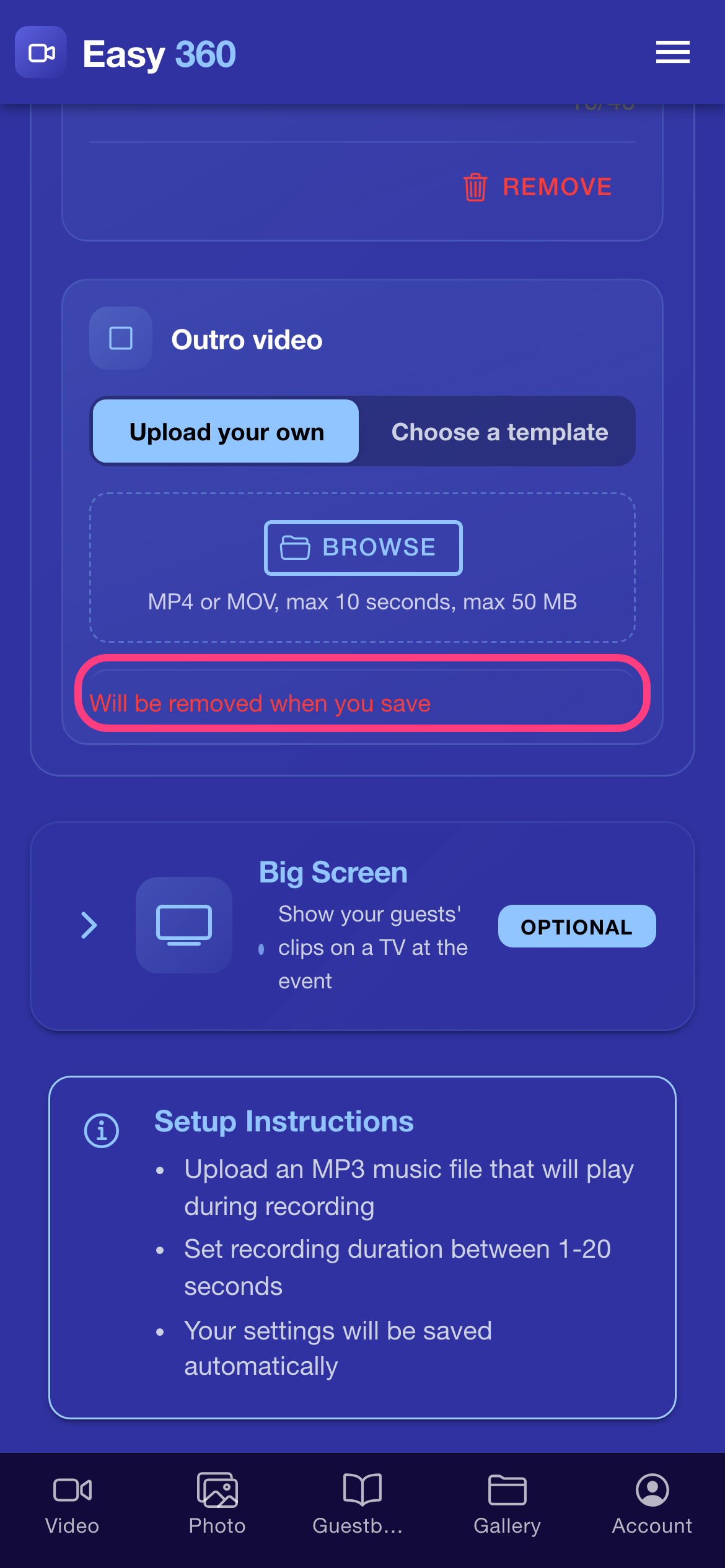
To stop using a clip, tap Remove on its card. The card shows Will be removed when you save, and the clip is deleted when you tap Save Settings.
Tips & troubleshooting
- If a card shows Processing failed — please try again, upload the clip again or pick the template again and save.
- The app checks the file before it uploads: Video is too long (max 10 seconds), File is too large (max 50 MB) and Please use an MP4 or MOV file each tell you what to change.
- Keep the intro short, 2 to 4 seconds is plenty. Guests share the clip for the spin, and a long intro makes them wait.
- Emoji cannot be drawn into a template. If your text contains one, the app shows what the clip will actually read before you save.
- On a free account the card shows Intro and outro videos are a Premium feature and an Upgrade button instead of the upload options.
FAQ
Do I need both an intro and an outro?
No. Each one is optional. You can use only an intro, only an outro, or both.
Does the intro apply to clips I already recorded?
No. It is added to the clips you record once the card shows Ready. Clips recorded earlier stay as they were.
What happens to my intro if my Premium plan ends?
New clips are made without the intro and outro. Subscribe again to bring them back.
Related guides
Ready to try it on your own booth?
Run your first event with the phone you already own. Try Easy 360 free, no card required.
Open the web app