How to Set Up a Video Guestbook Kiosk
Create a guestbook event, hand a tablet or phone to your guests in kiosk mode, and collect their video messages in one gallery you can download.
~5 min Premium See plans
Fill in the event
Open the Guestbook tab. Under Create event, type the Event name, the Message shown to guests and pick the Max message length: 10, 15 or 30 seconds. The name and the message each need at least 3 characters.
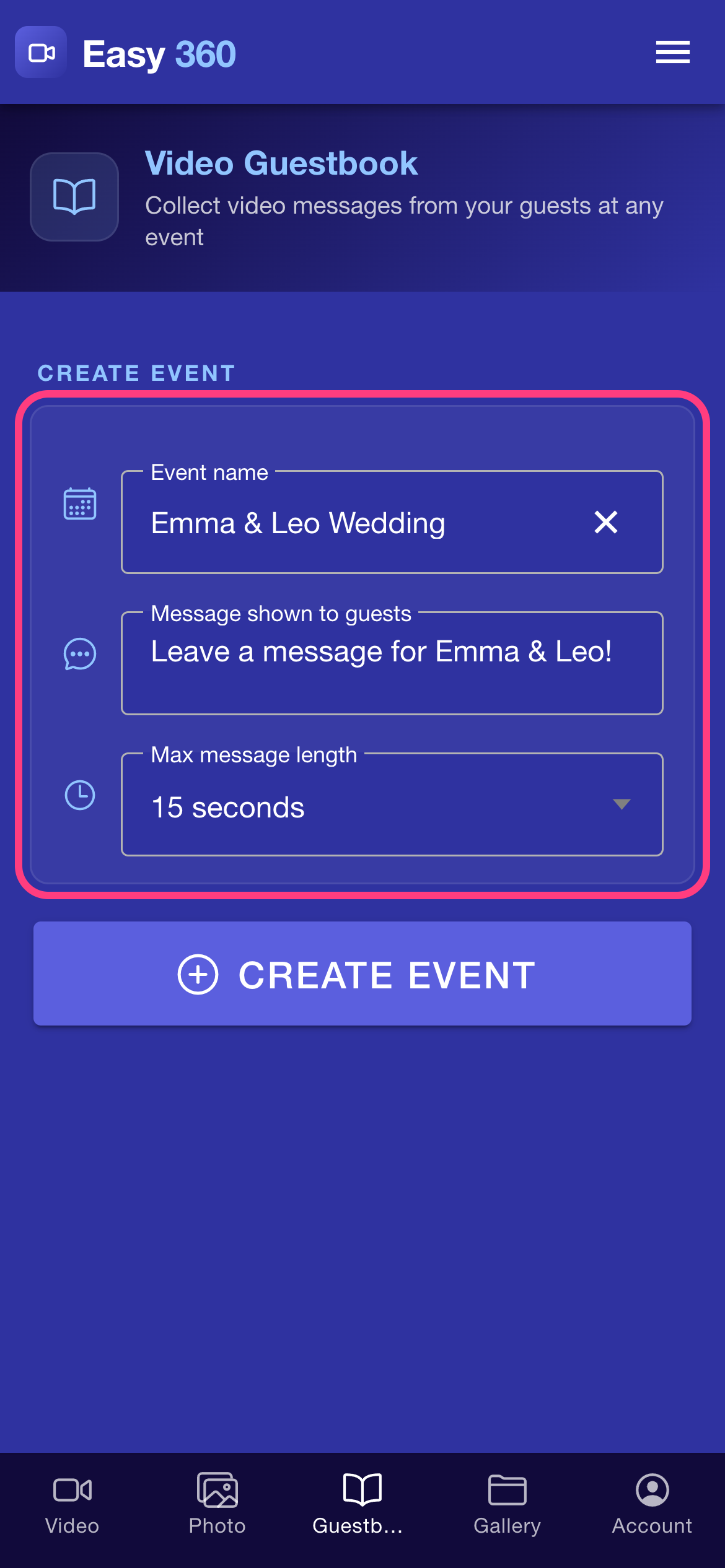
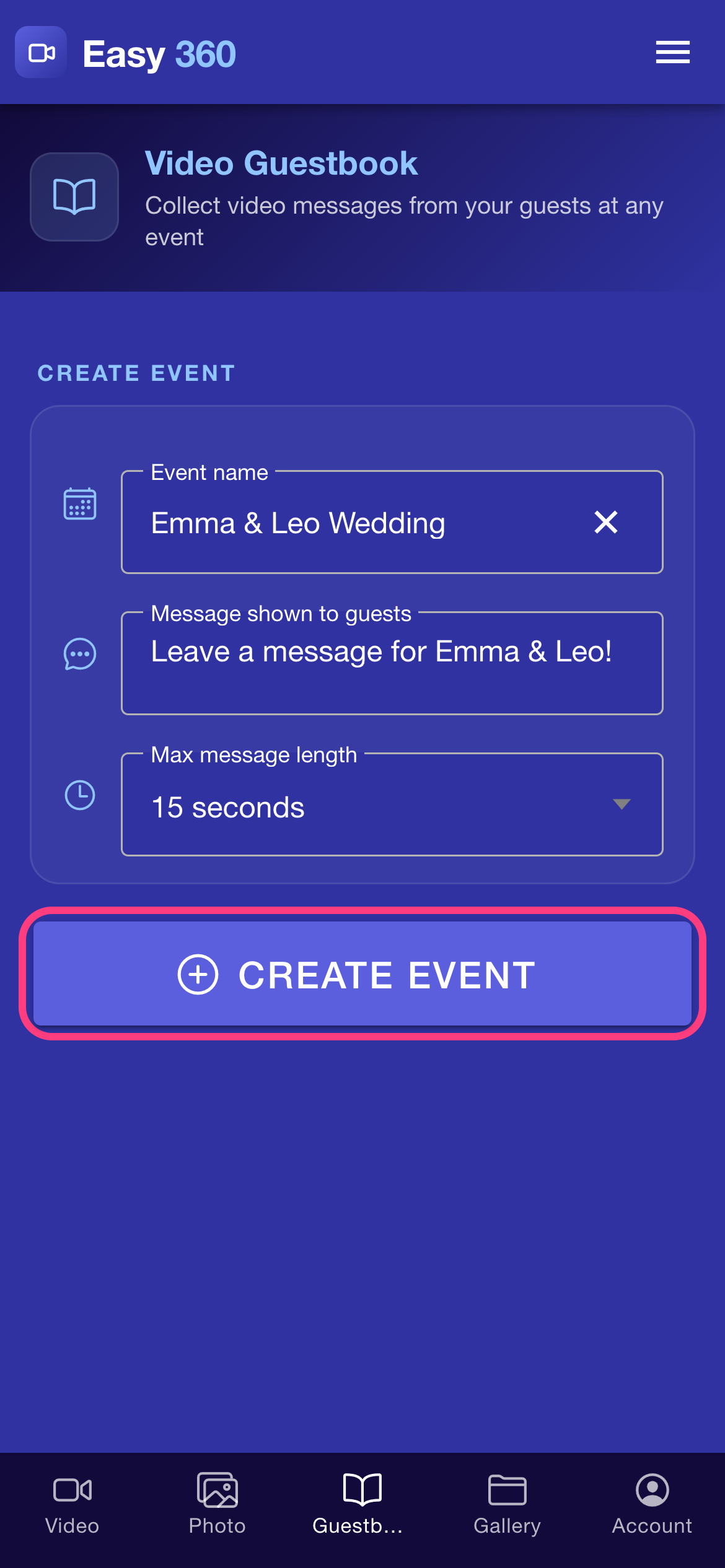
Create the event
Tap Create event. The button stays greyed out until both text fields are long enough.
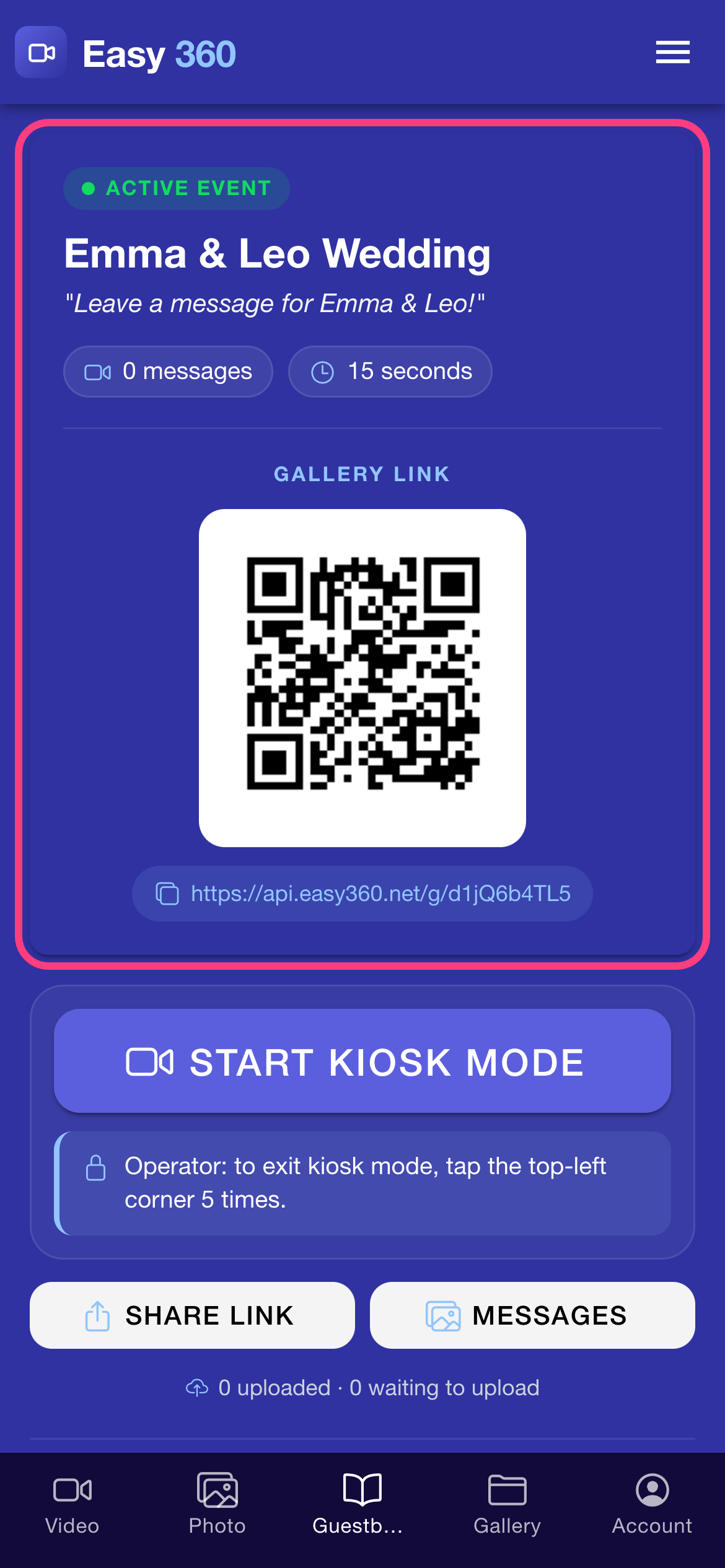
Check the live event card
The event card shows Active event, your guest message, the message count and the length limit. The QR code and the link under Gallery link open the web gallery where the hosts can watch every message. Tap the link to copy it.
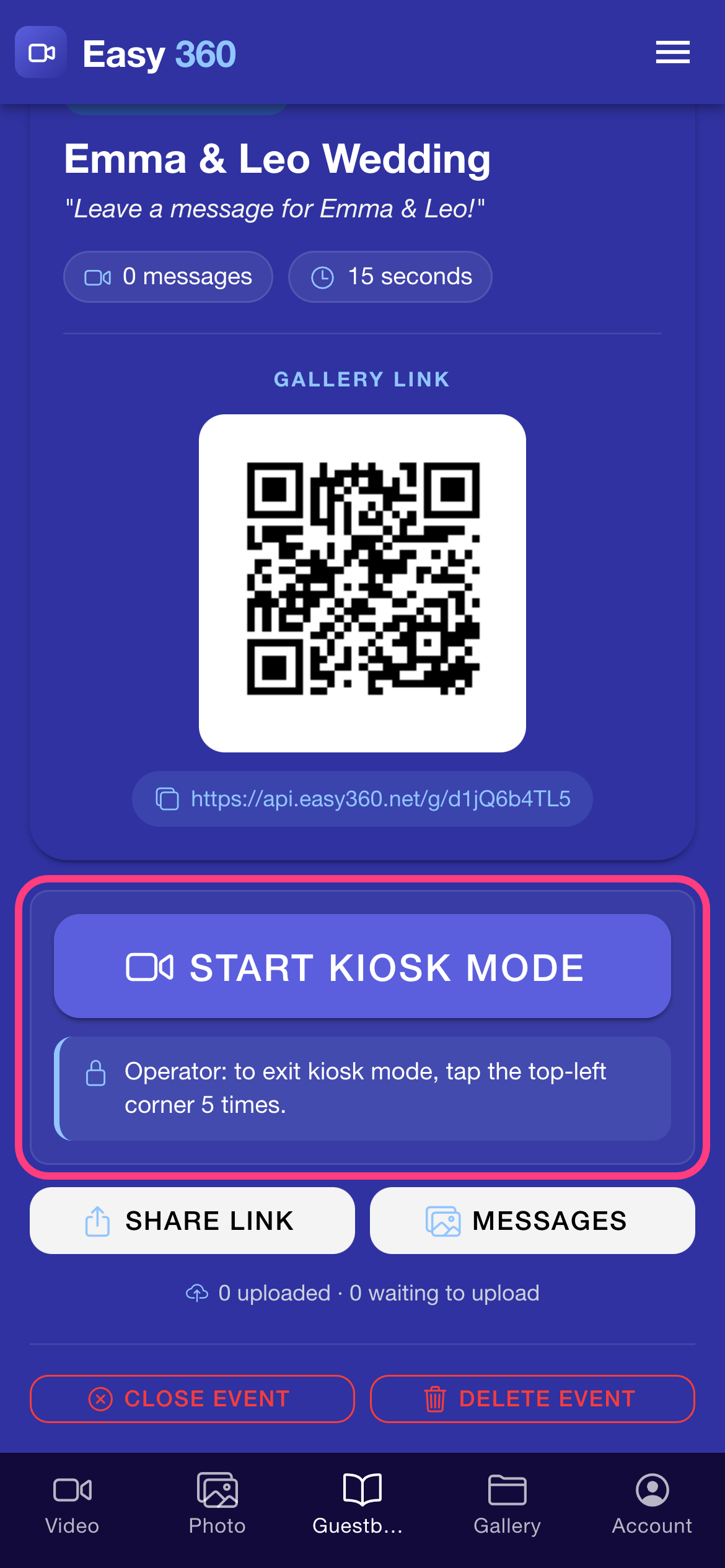
Start kiosk mode
Read the operator note under the button, then tap Start kiosk mode. Put the device on its stand facing where the guests will stand.
Guests tap to record
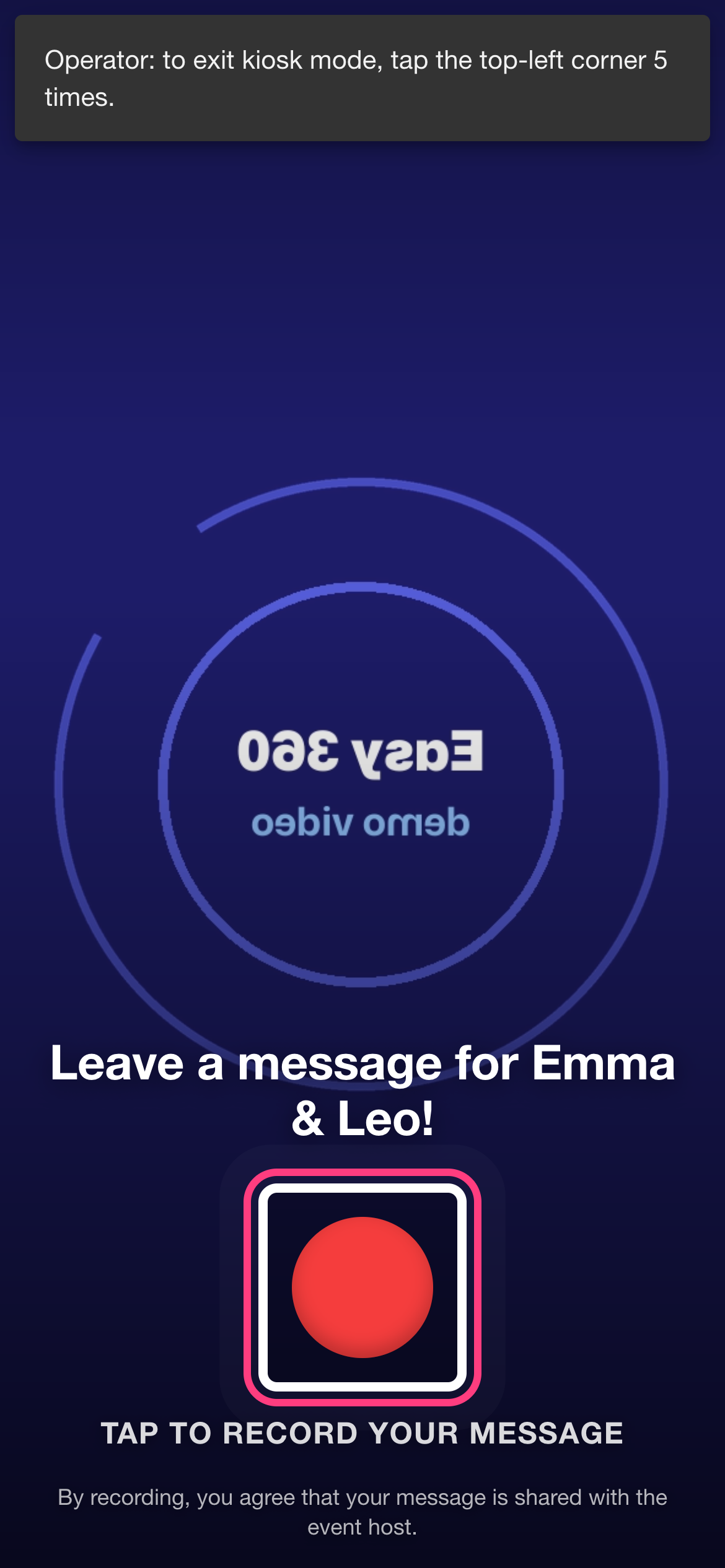
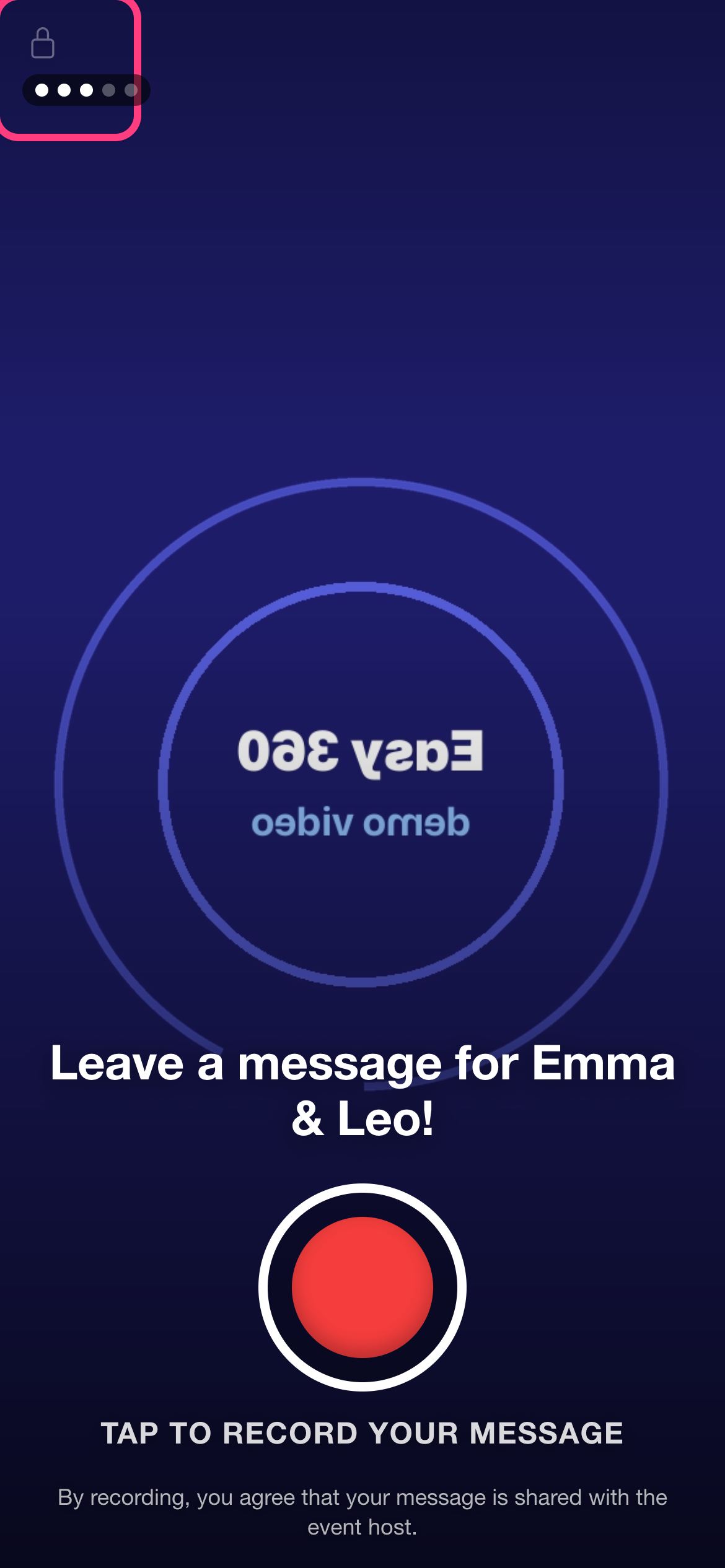
The kiosk shows the front camera, your guest message and a big red button with Tap to record your message. Guests tap it, a short countdown runs and the recording starts. The consent line at the bottom tells them the message is shared with the host.
Recording with a timer
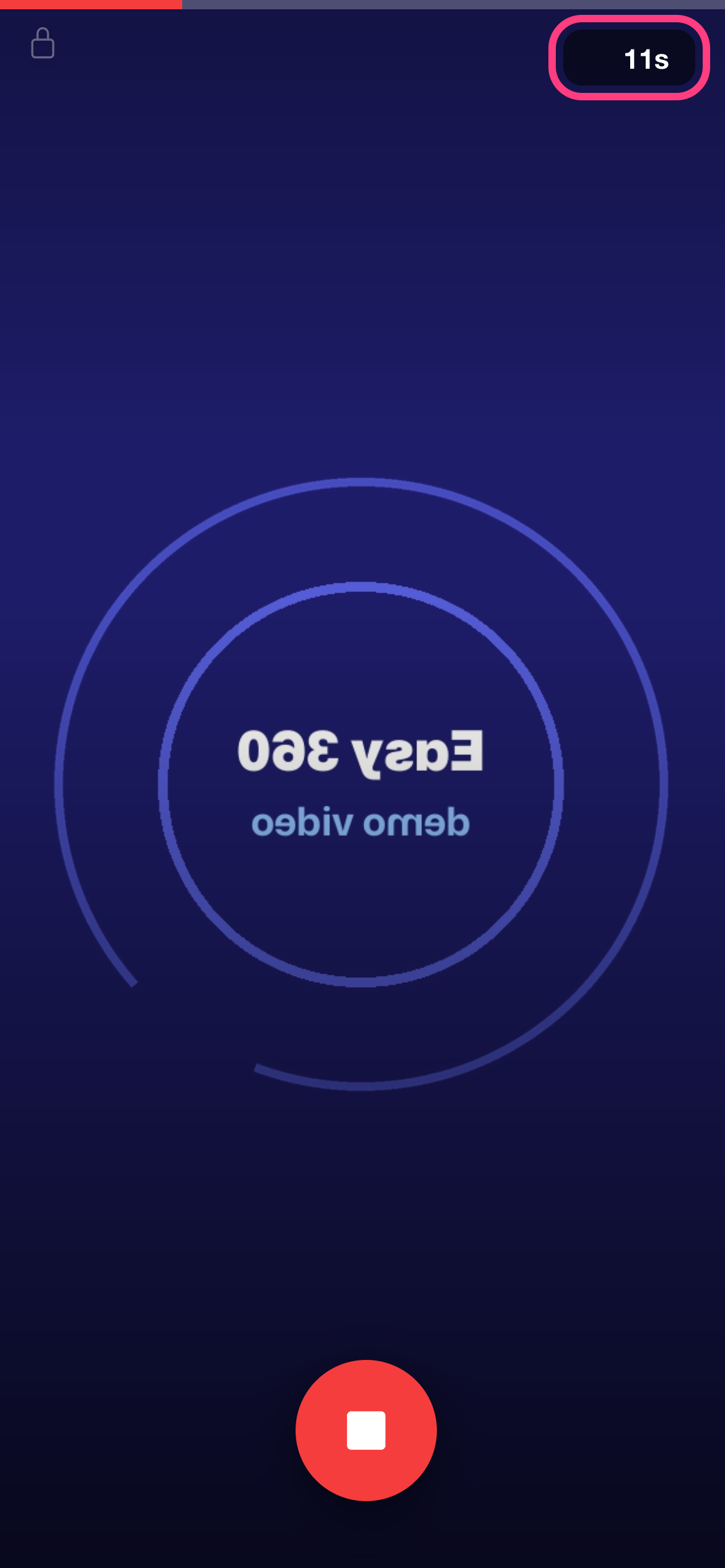
While recording, the badge in the corner counts down the seconds left and a bar runs across the top. Guests can stop early with the stop button. Recording ends by itself at the length limit.
Retake or send
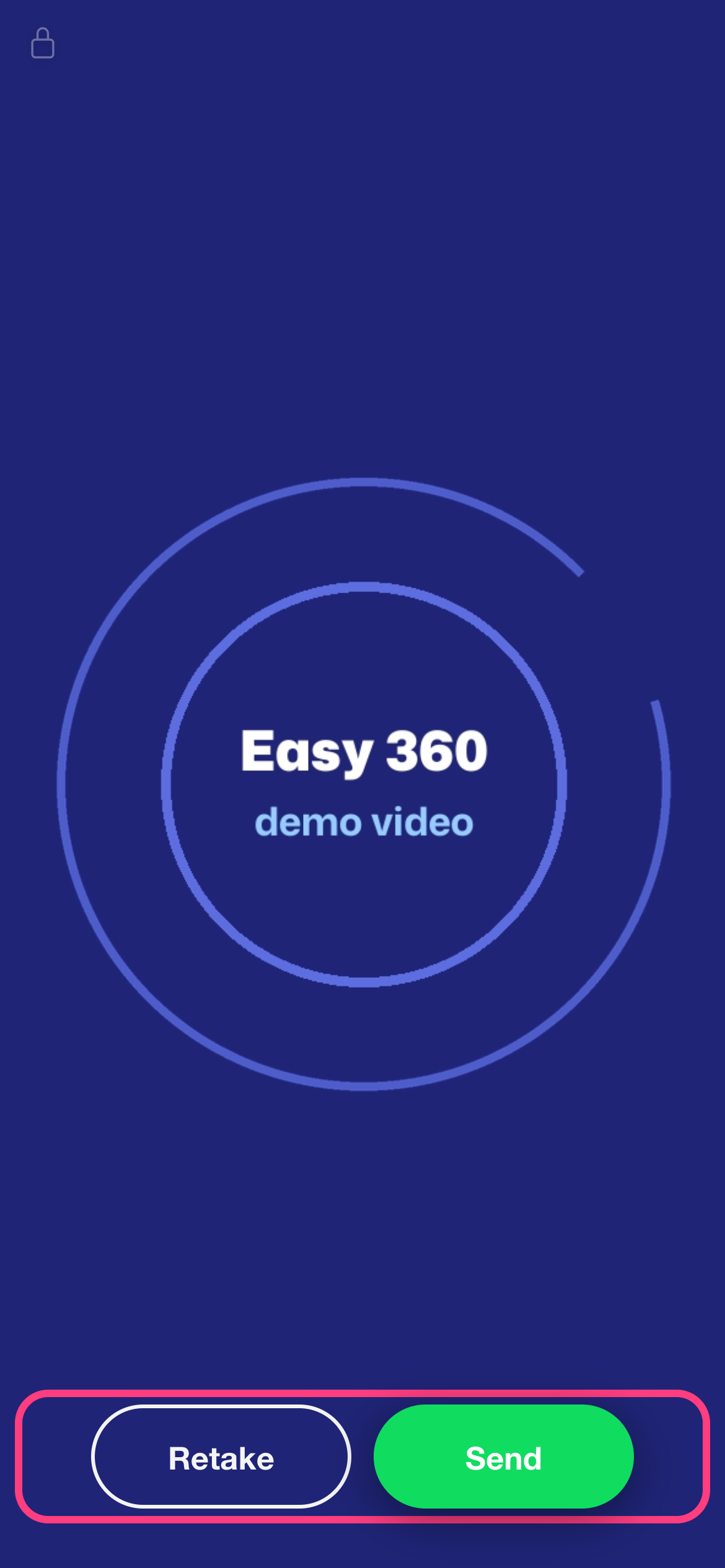
The message plays back. Guests tap Retake to try again or Send to keep it.
Thank you, and ready for the next guest
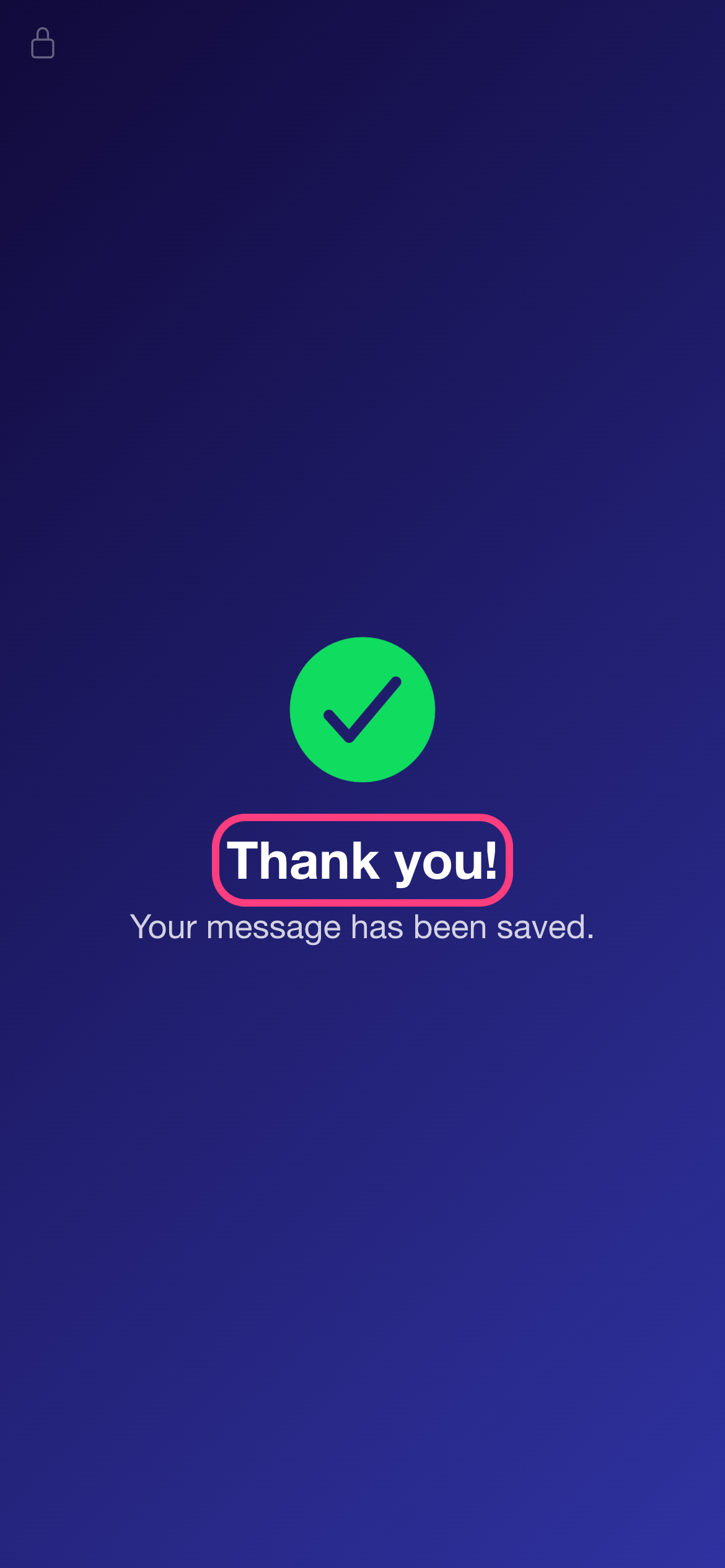
The kiosk shows Thank you! and Your message has been saved., then returns to the record screen by itself. The message uploads in the background.
Exit kiosk mode
Kiosk mode has no visible exit, so guests cannot leave it by accident. To exit, tap the top-left corner 5 times within 3 seconds. A faint lock marks the spot, and from the second tap, dots show your progress.
Watch and download the messages
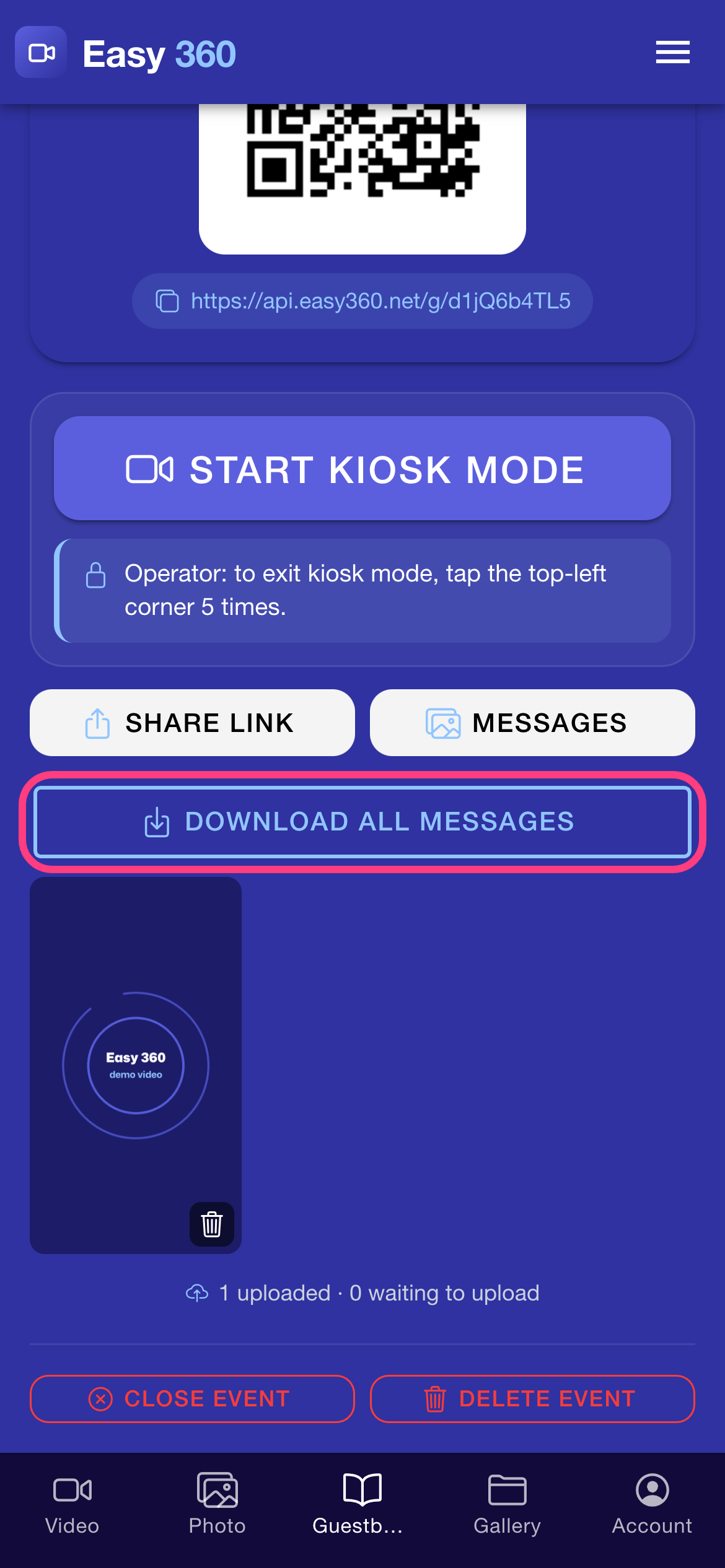
Back on the Guestbook tab, tap Messages to see a thumbnail for each message. Tap a thumbnail to play it. Tap Download all messages to save them all to the device's gallery. Messages that are already saved are skipped.
Close or delete the event
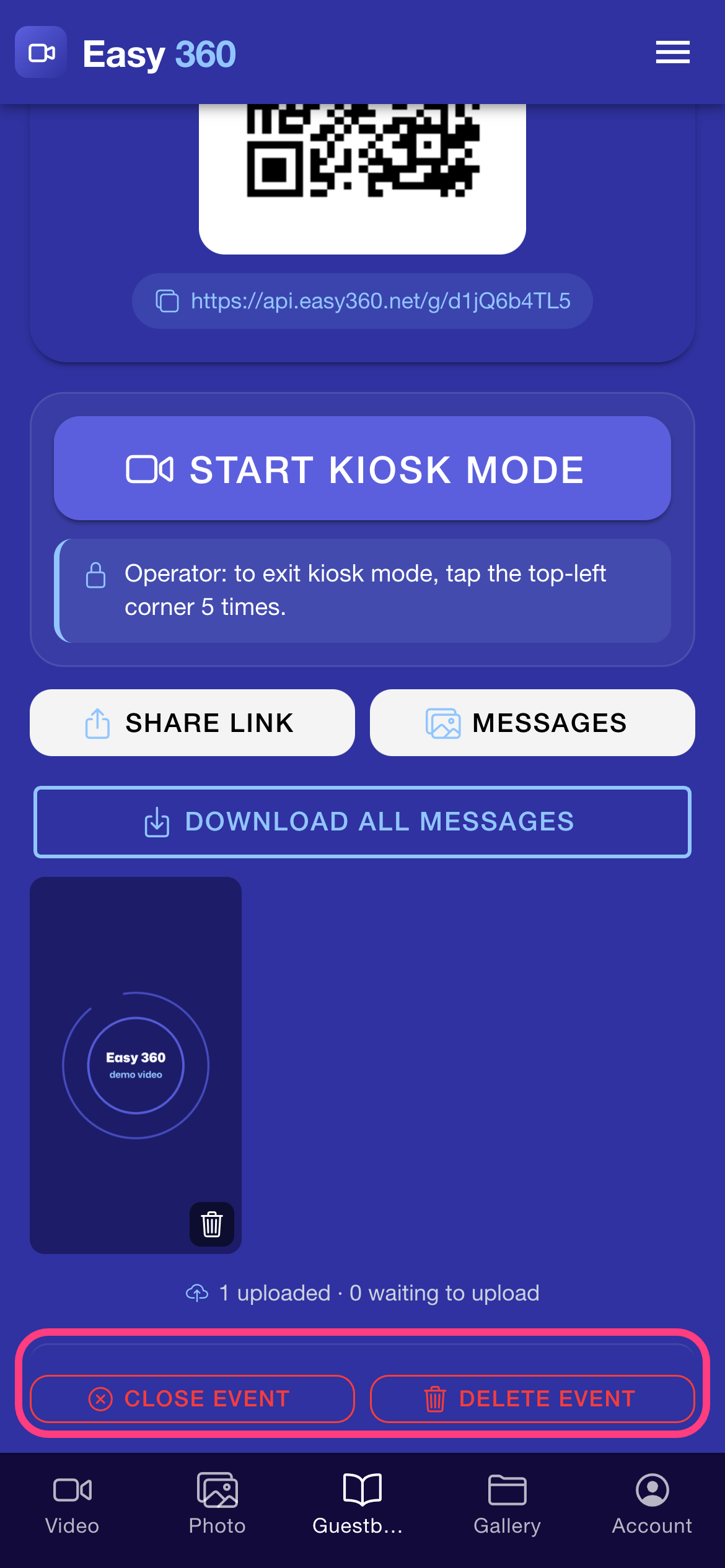
After the event, tap Close event: guests can no longer record, and the gallery link keeps working. Delete event permanently removes the event and all its messages from the server, and the gallery link stops working, so download the messages first.
Tips & troubleshooting
- Test the kiosk once before the guests arrive, including the 5-tap exit, so you know where the corner is on your device.
- Set the Message shown to guests to a short, friendly prompt such as "Leave a message for the couple!". It is the biggest text on the kiosk screen.
- If the venue Wi-Fi drops, keep recording. Messages wait on the device and upload when it is back online. The Guestbook tab shows how many are uploaded and how many are still waiting.
- If you see Event name and guest message each need at least 3 characters., make both fields longer, then tap Create event again.
- Messages are deleted from the server automatically at the end of the retention period. When a deletion date applies, the event card shows it, so download the messages in time.
FAQ
Can I run the guestbook on an iPad?
Yes. Any tablet or phone with Easy 360 works, and the web app works in a tablet's browser too. A tablet on a stand is the most comfortable setup for guests.
How long can a guest message be?
You choose 10, 15 or 30 seconds in Max message length when you create the event. The kiosk stops the recording at that limit.
How do the hosts get the messages?
Send them the gallery link or let them scan the QR code on the event card. They can watch every message in their browser, and you can download all the files for them.
Related guides
Ready to try it on your own booth?
Run your first event with the phone you already own. Try Easy 360 free, no card required.
Open the web app